


Proxy in Google Chrome solves a ton of tasks. You hide your real IP, bypass resource blocks, check sites as if you're accessing from another country. A proxy intermediary changes geolocation data and stands between the browser and target resource. Below you'll find a breakdown of all proxy connection methods for Chrome. We show setup for Windows and macOS, describe working with extensions, explain configuration on Android and iOS smartphones. Separately we look at typical screw-ups and share practical know-how.

Contents
- What is a proxy server for Google Chrome and why do you need it
- How proxy works in Chrome browser
- Ways to configure proxy in Google Chrome
- Setting up proxy in Google Chrome through Windows
- Setting up proxy in Google Chrome through macOS
- Setting up proxy for Chrome through extensions
- Setting up proxy in Chrome on Android
- Setting up proxy in Chrome on iPhone and iPad
- Connection check and speed test
- Typical errors when working with proxy in Chrome
A proxy server plays the role of intermediary. The request doesn't go straight to the site, but hits an intermediate server. That one forwards it further on its own behalf. The resource logs the proxy address and the real IP stays invisible.
For businesses and specialists this gives concrete advantages. SEO specialists, PR people, marketers, advertisers check resource positions in search results for different cities and countries. Traffic buyers manage multiple advertising accounts in parallel without fearing bans for multi-accounting. Programmers see how their projects work for visitors from other regions.
Settings are divided into system and browser. The first ones affect the entire operating system. All programs that need internet will go through proxy. The second ones work only inside Chrome or even at the level of individual tabs. Other software continues working directly.
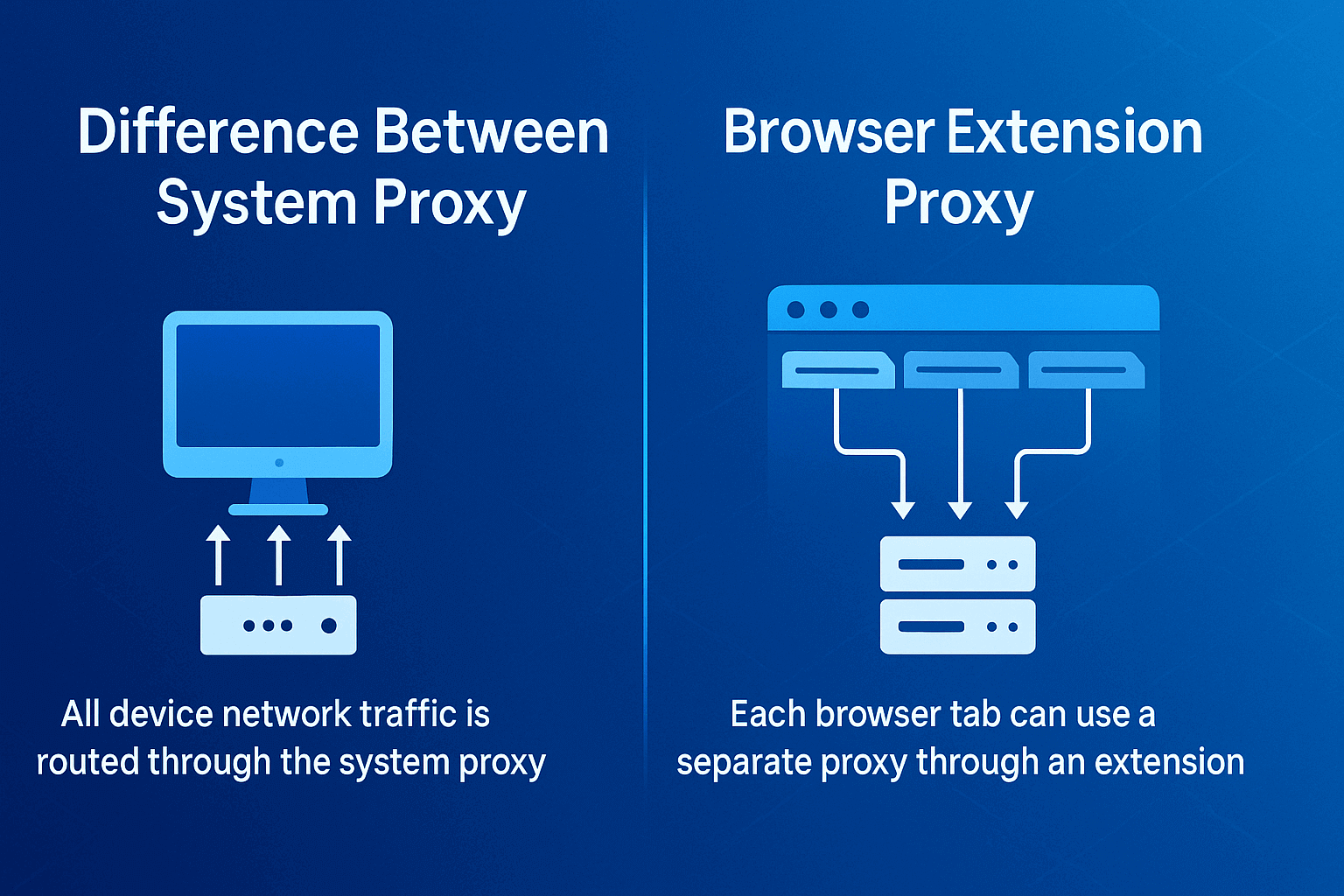
In Google Chrome there's no separate menu for proxy configuration. The browser takes data from Windows or macOS parameters. Specify a server in system settings, Chrome immediately starts using it.
This solution has pros and cons:
Pros of system approach:
- You enter proxy data once for the entire system
- All programs automatically use proxy without additional settings
- No need to configure each application separately
- Browsers, email clients, messengers work through one server
- Simplicity of management for corporate networks
Cons of system approach:
- Impossible to route only browser through proxy, leaving the rest direct
- Torrent clients, Telegram, Skype will also go through proxy
- Can't use different proxies for different programs simultaneously
- When there are problems with proxy, all internet on computer stops working
- Hard to quickly switch between proxy and direct connection
- Games and streaming services may lag due to extra intermediary
You don't need to type the same data into every program. But if you want to route only browser through proxy and leave the rest as is, the system method won't work.
The difference between system proxy and extension is fundamental.
System one spreads to all computer traffic. Messengers, email, torrent clients will also go through it.
Extension gives more options for choice. You create rules for which sites go through proxy, which directly. Some tools even allow using different servers on different tabs simultaneously.
In practice it looks like this. With system method absolutely all Chrome traffic is directed through a single proxy server that you specified in operating system parameters. You can change server only through Windows or macOS settings. One tab with Russian resource works through Russian IP, another with American through US one.
Three main connection options. Each solves its own tasks depending on goals and device.
- System OS parameters
In Windows setup through network and internet parameters. In macOS through system settings in network section. You entered data at system level, Chrome picked them up. Good when all computer traffic should go through proxy.
- Browser extensions
Install Proxy SwitchyOmega, FoxyProxy or GeoProxy from Chrome store. Create profiles for different servers. Switch with a click. Configure auto-selection of proxy by site address.
- Mobile platforms
On smartphones and tablets Chrome doesn't have its own proxy menu. Everything is done through Android or iOS settings at system level.
GonzoProxy works with all methods. Over 20 million IPs across different countries, cities, carriers. Smart rotation changes addresses by your rules itself. Residential proxies look like home users, sites don't detect them.
In Chrome open three dots, then Settings, System
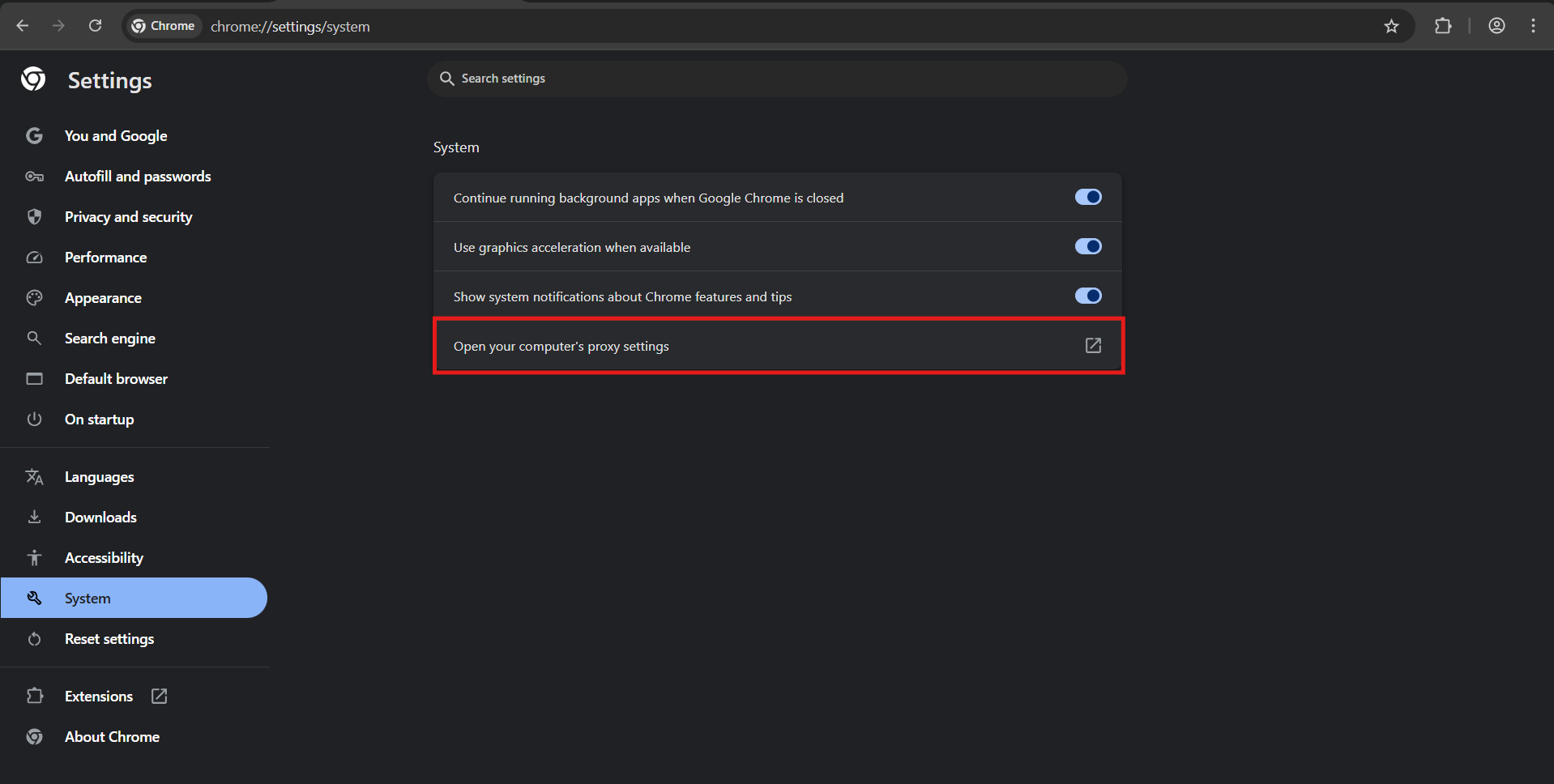
- "Proxy server settings". Then we'll be thrown into system settings.
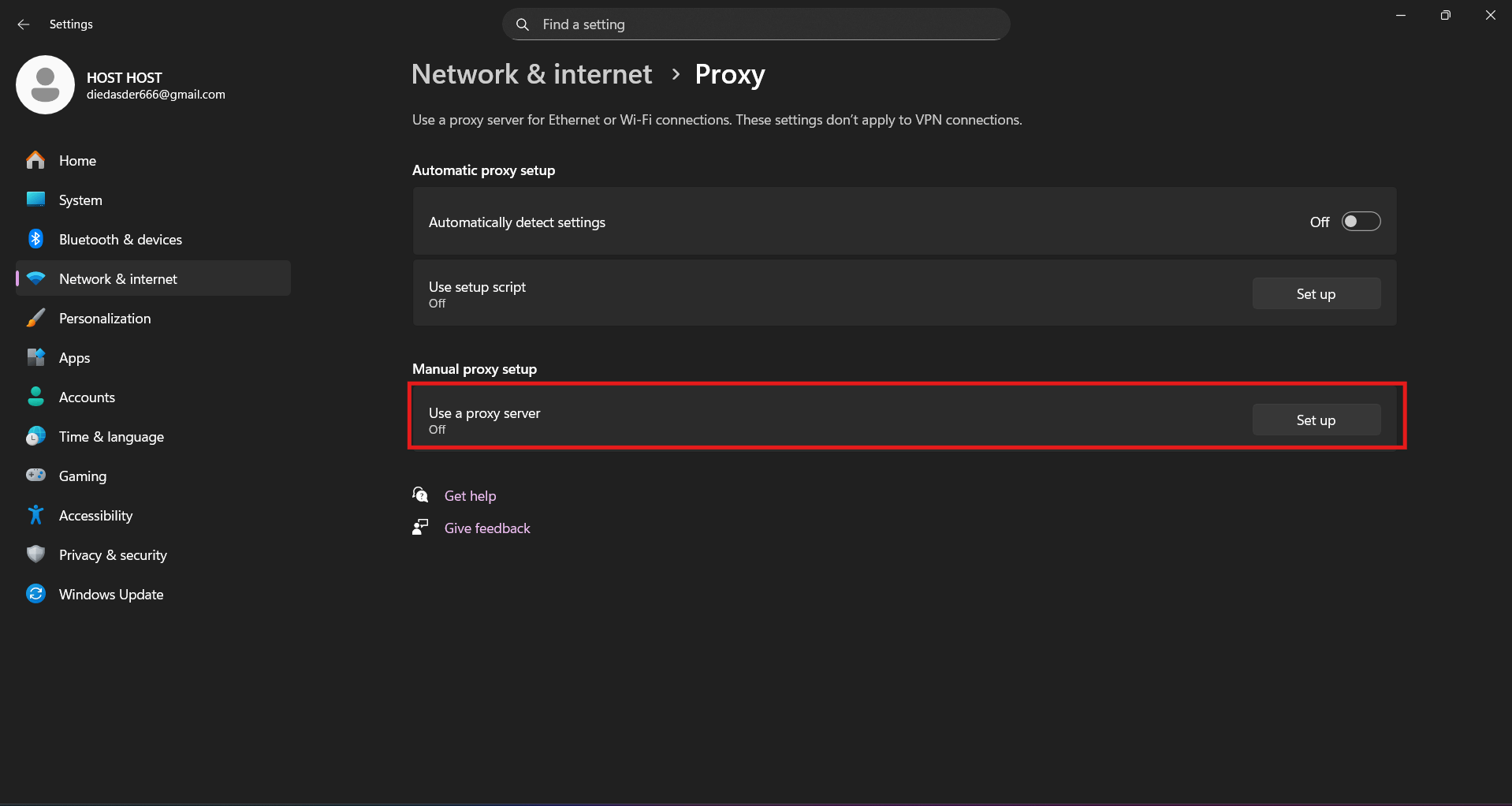
- Turn on the toggle "Use a proxy server". In address field enter IP from GonzoProxy panel and port. Click save.
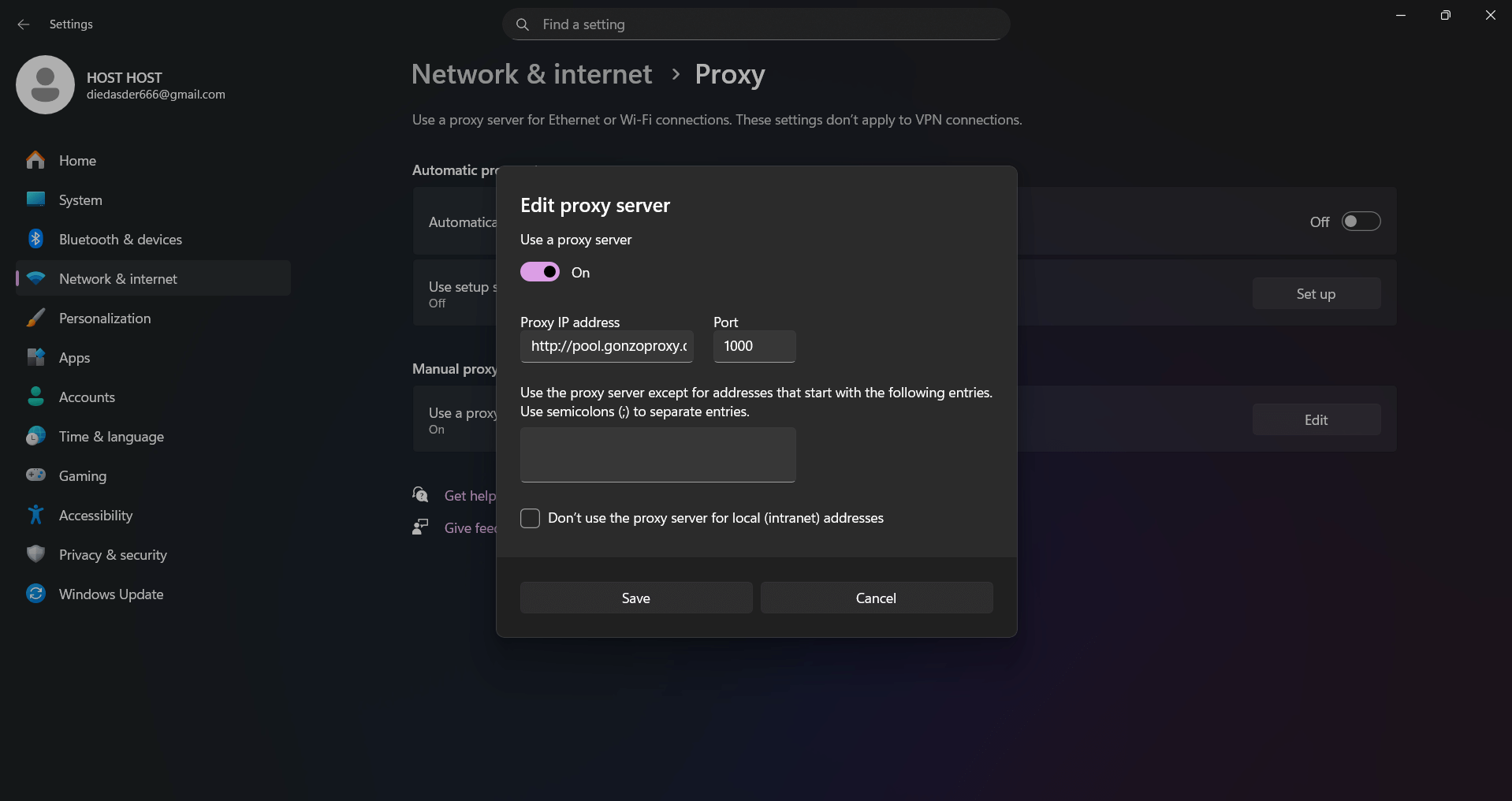
- Go to browser, here it will ask for login and password from proxy
System setup is good if you use one IP. Need to change often? Switch to extensions. Guys with multi-accounting save about 20 minutes a day on switches.
Click Apple menu at top left, "System Preferences". Open "Network". On left is list of connections, choose active one, usually Wi-Fi or Ethernet.
Press "Advanced" at bottom right. A window with tabs pops up, go to "Proxies".
There's a list of protocols. For Chrome web proxy HTTP and secure HTTPS are enough. Check the boxes.
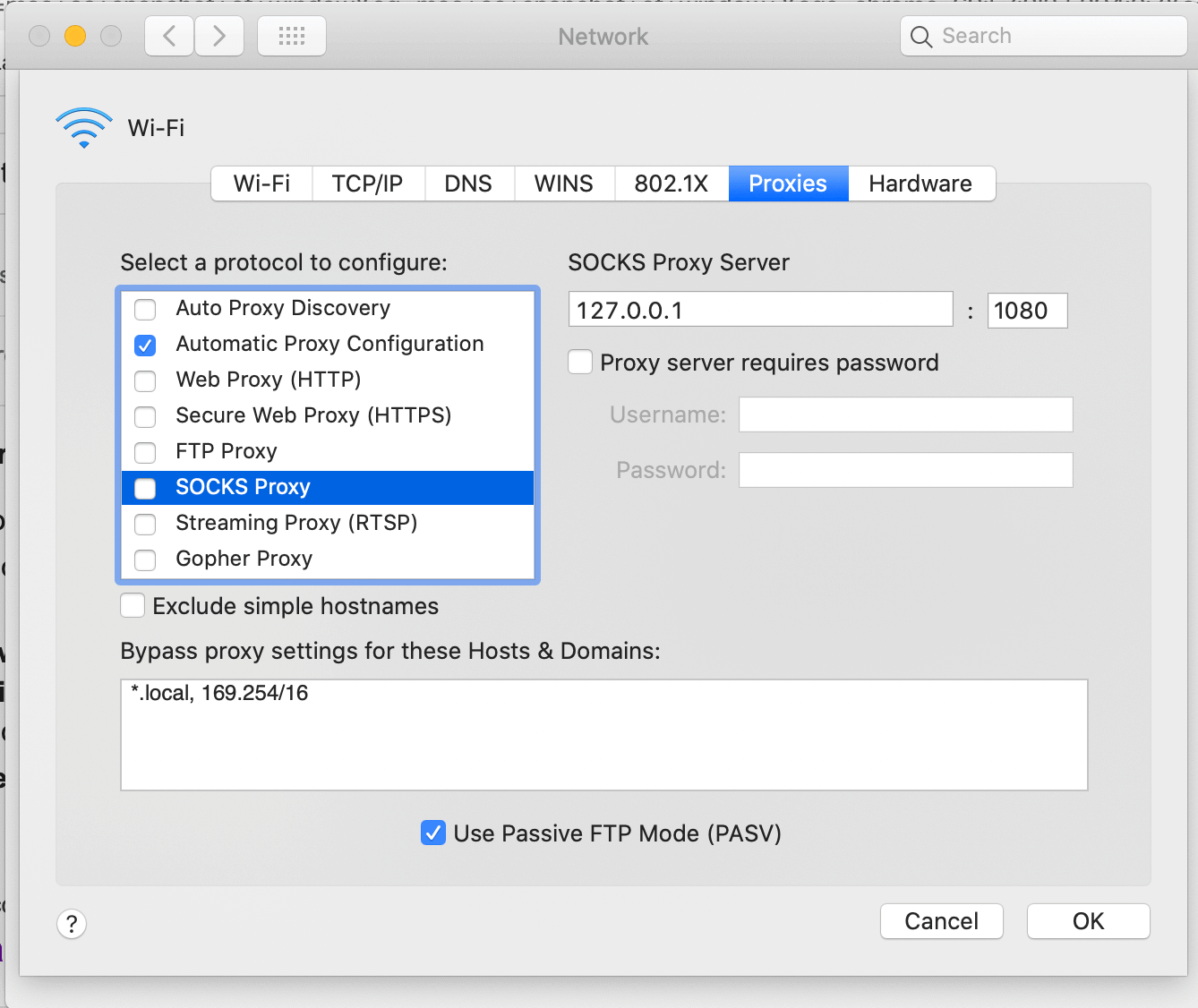
Fields appear on right. Enter server address and port. Need authorization - check "Proxy server requires password", enter credentials. In bypass settings add addresses for direct connect.
Press "OK", then "Apply". Chrome immediately starts working through proxy.
Life hack - create two network locations through "Location" menu. To do this, open "System Preferences", then "Network". In top part of window find "Location" dropdown menu and select "Edit Locations". Press "+" button at bottom of list and name first location, for example "With proxy". Configure proxy server in it using instructions above. Then create second location, name it "Without proxy" and leave proxy disabled.
Result - you get two ready network profiles. Switching between them takes literally three seconds through Apple menu at top of screen. Click the apple, choose "Location", select needed profile. Incredibly convenient for quick site checks with and without proxy, no need to dig into deep system settings every time.
Extensions are needed when system capabilities aren't enough. You often change servers during the day, use different proxies for different sites, maintain separate profiles for each project, work with data parsing, manage multiple social media accounts, test geo-targeting of advertising campaigns, check site availability from different countries simultaneously - extensions handle all these tasks.
Popular solutions
Proxy SwitchyOmega is a popular extension among SEO specialists and arbitrage traders with 4.6 star rating and over 3 million users. It's valued for flexibility of manual profile management. You create unlimited configurations with different servers, build proxy chains when traffic goes sequentially through several servers to increase anonymity. Switching between profiles happens through dropdown menu in one click. Suitable for those who want full control over each connection and are ready to manually choose needed profile depending on task.
FoxyProxy has 4.5 star rating, over 2 million installs. Users choose it for smart automation. Main difference from SwitchyOmega is auto-selection of proxy based on URL without your participation. You set rules once - for example, all sites with .ru domain go through Russian proxy, .com through American, social networks through separate server. Then extension itself determines needed proxy when opening each site. Saves tons of time when working with dozens of resources. Ideal for multi-accounting when you need to keep tabs open with different geographic bindings simultaneously.
What's the fundamental difference? SwitchyOmega for those who want to control each switch manually and use complex routing schemes. FoxyProxy for automating routine, when you set up rules once and forget. From experience of specialists engaged in promoting sites in different regions, SwitchyOmega is chosen for pinpoint tasks and experiments, FoxyProxy for daily work with constant set of resources.
Setting up Proxy SwitchyOmega
1. Install from Chrome Web Store.
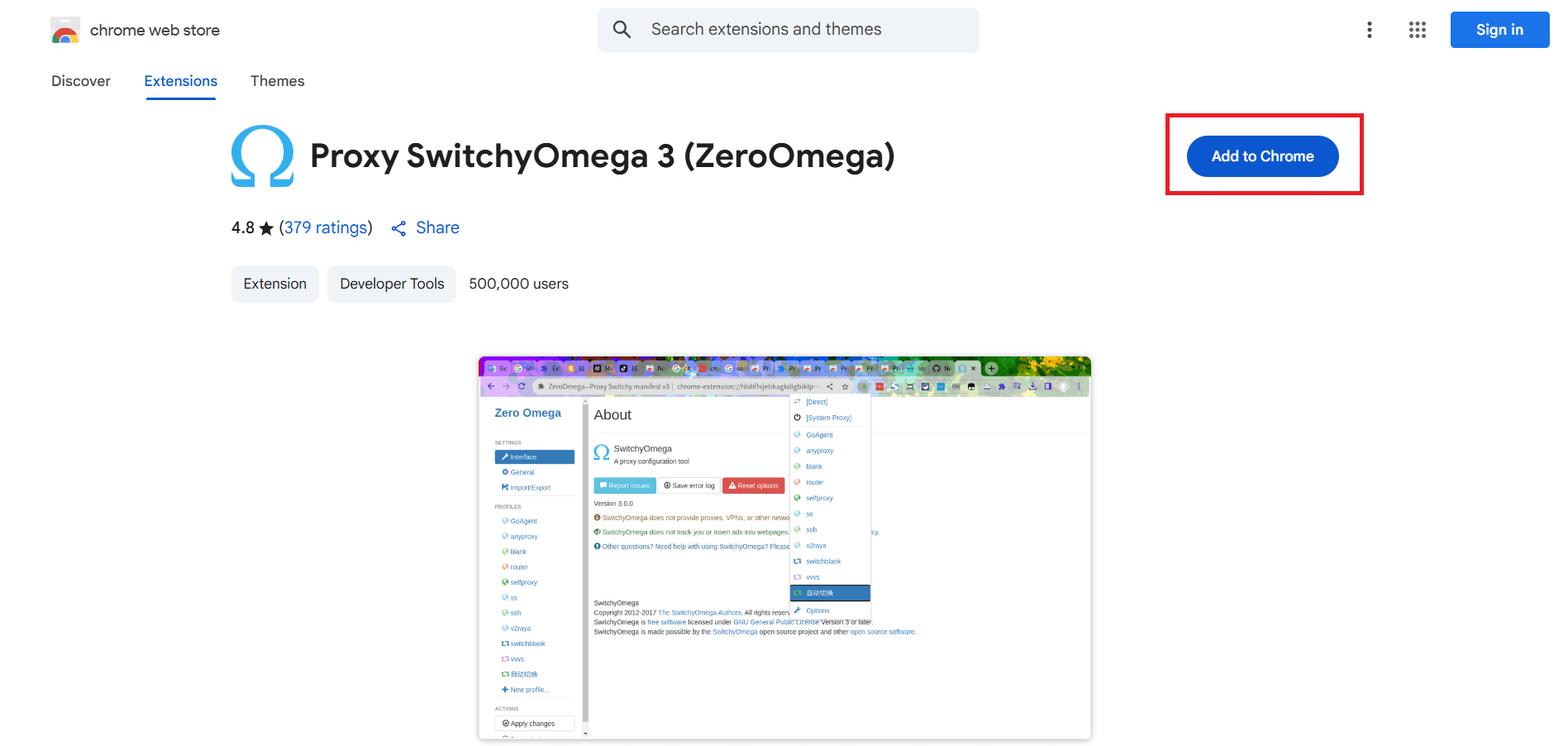
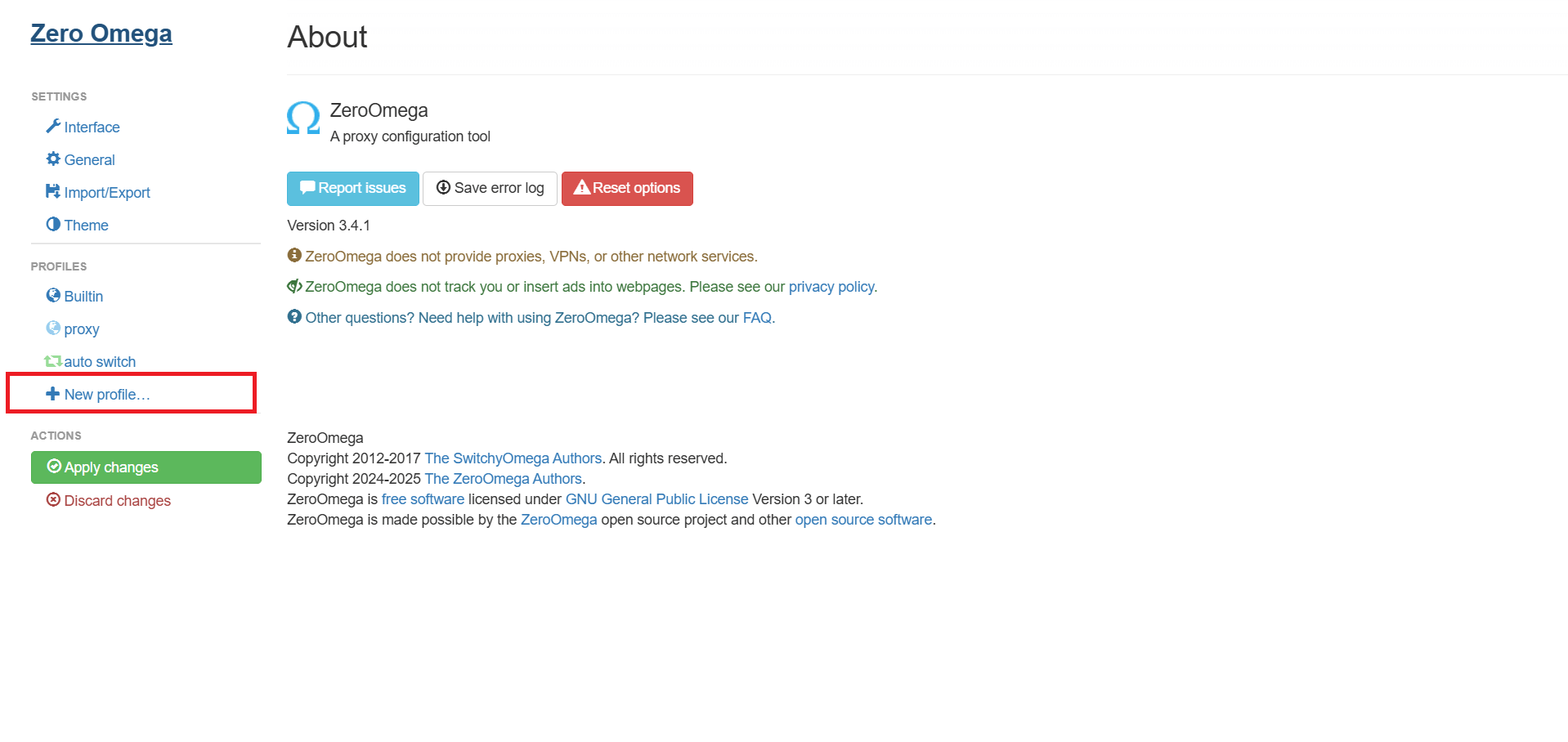
2. Press "New Profile", name it whatever you want. Type "Proxy Profile".
3. Specify protocol HTTP, HTTPS or SOCKS5, address and port. Need authorization - enable it, enter login with password.
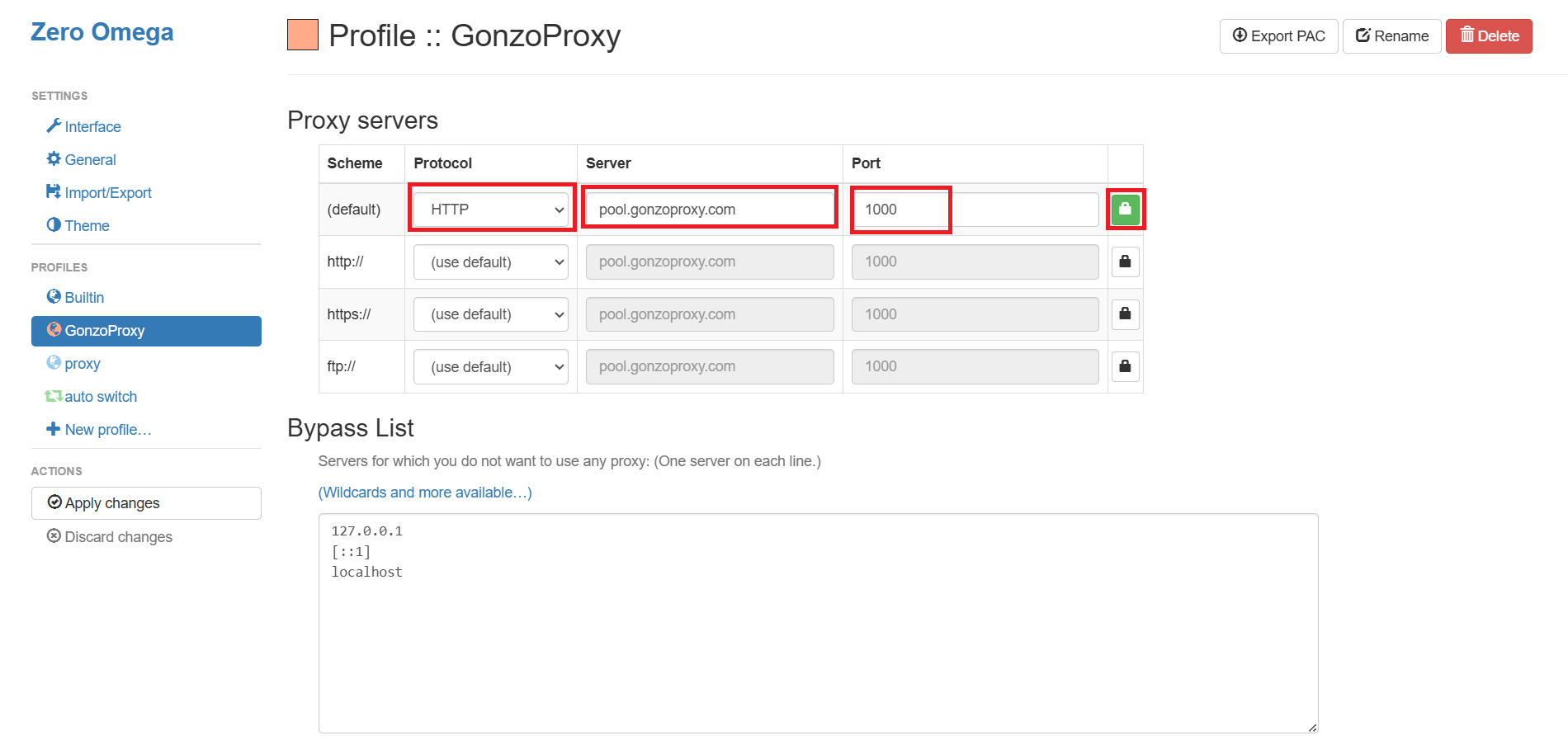
4. Save through "Apply changes".
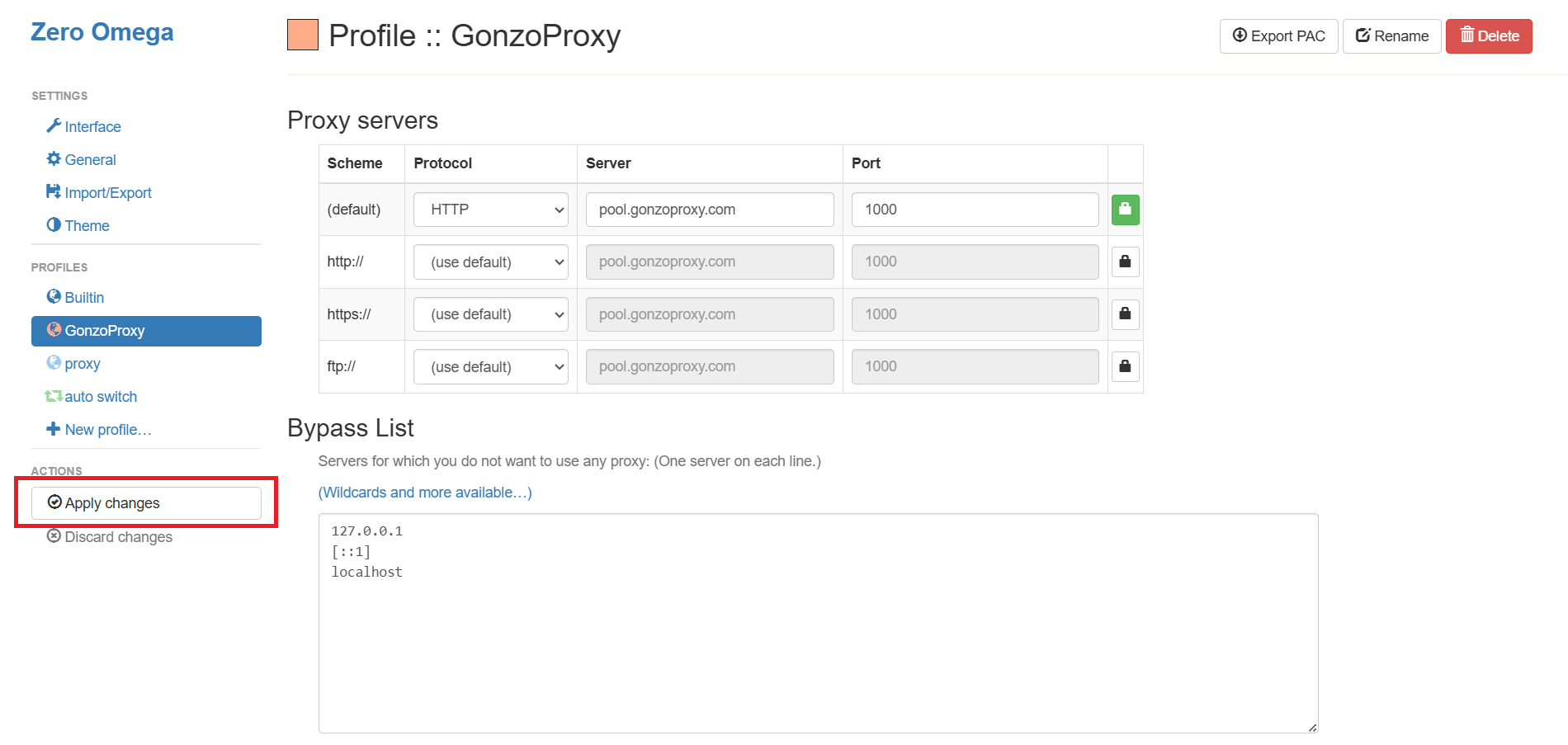
Now you get ability to access sites with IP from another country, city or specific provider.
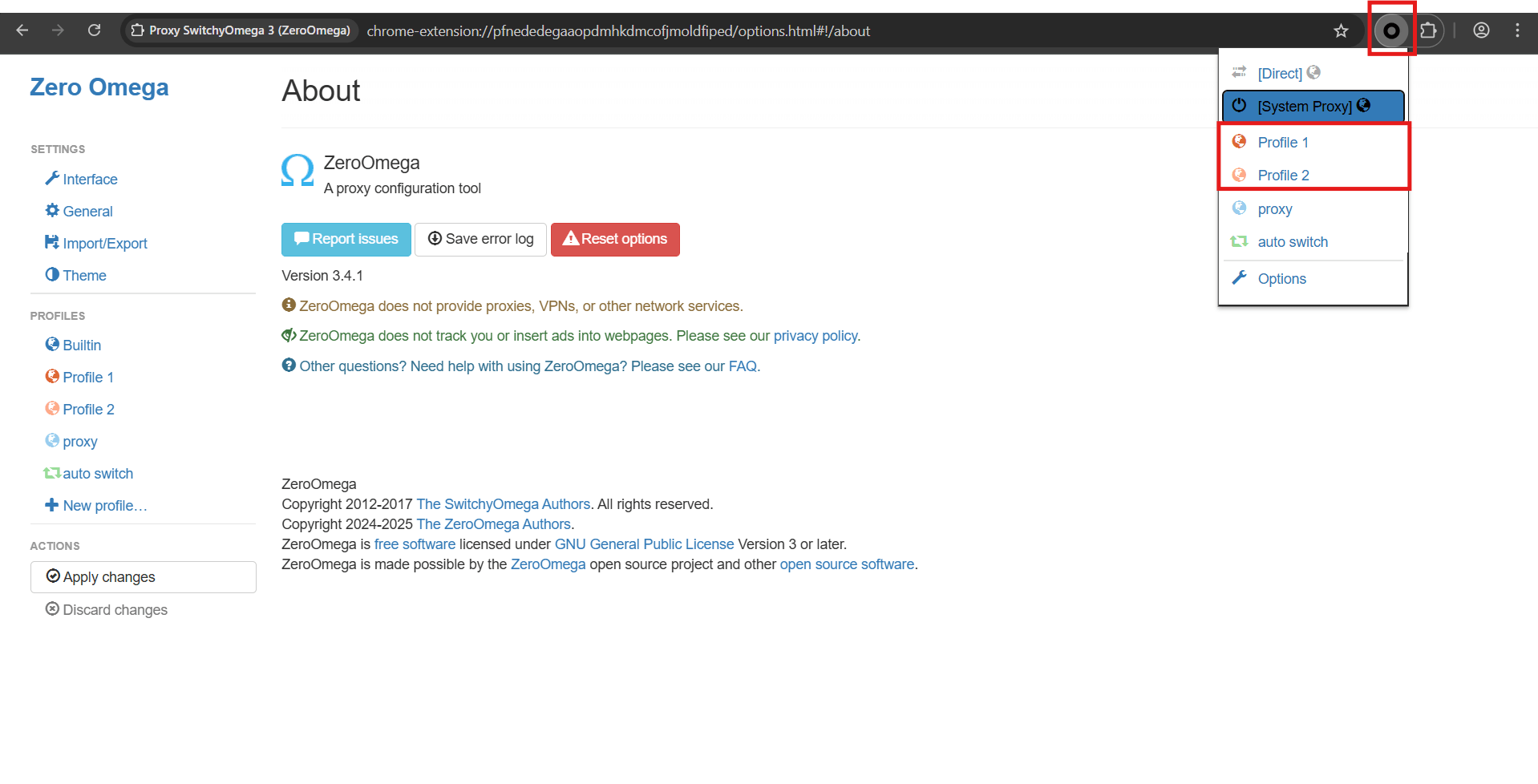
To switch between profiles just click extension icon in Chrome toolbar. A menu drops down with list of all created profiles. Choose needed one with one click. All open tabs instantly start working through selected proxy.
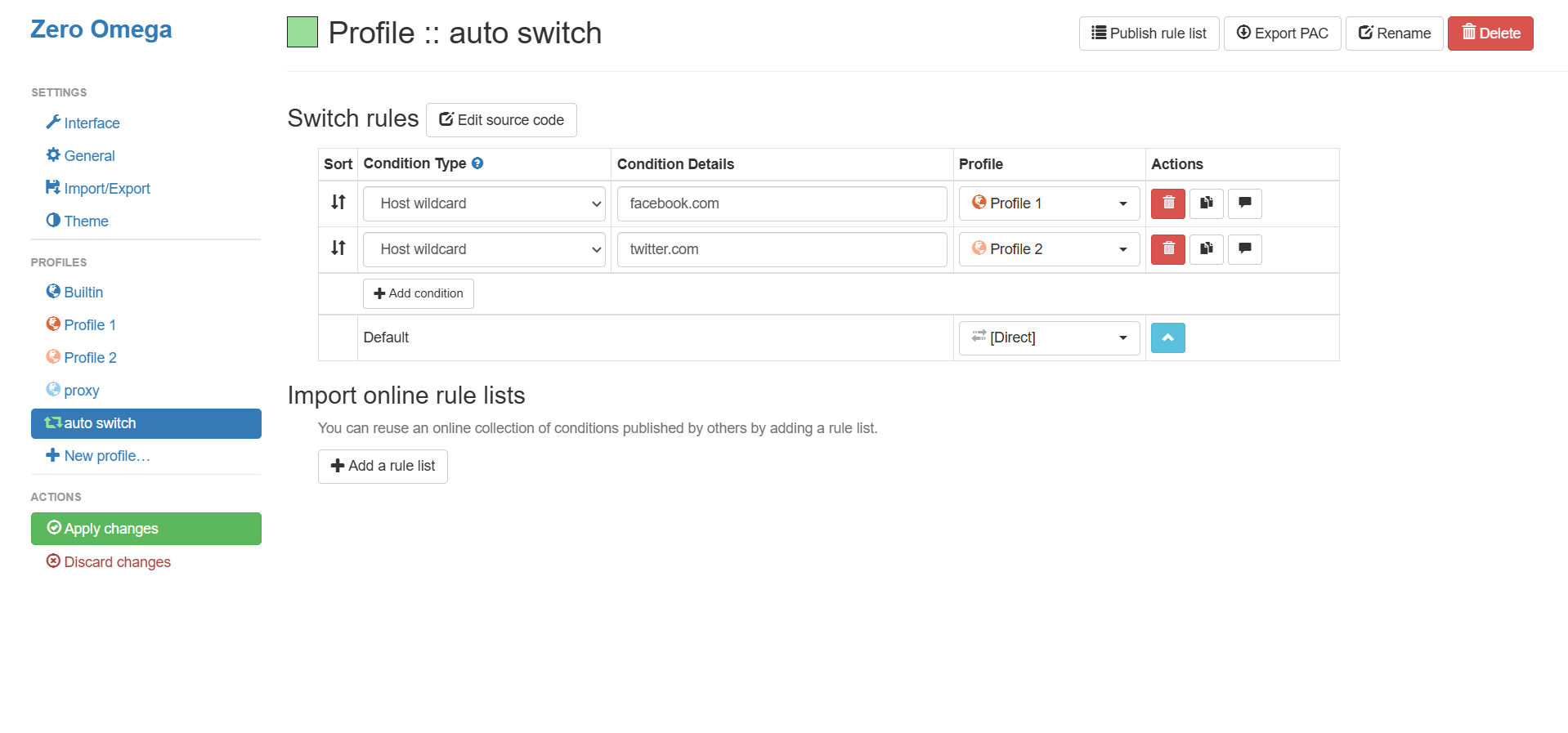
To set up automation:
- Go to extension "Options", in left menu choose "Auto Switch"
- Press "Add condition":
- In "Condition Type" field choose "Host wildcard" for domains or "URL wildcard" for specific addresses
- In "Condition Details" field enter mask - for example "vk.com" for VKontakte or "facebook.com" for Facebook
- On right in "Profile" choose needed proxy profile
- Save. Now social networks automatically open through one proxy, search engines through another, other sites through third or directly at all.
Tip from GonzoProxy: Filter IPs by countries and providers to quickly switch profiles in extension. When parsing, switch between profiles every 50-100 requests. Clicked extension icon, chose another profile, continued data collection. For site it's each time a new user from another country and from another provider. Blocking doesn't happen, parsing goes stable for hours.
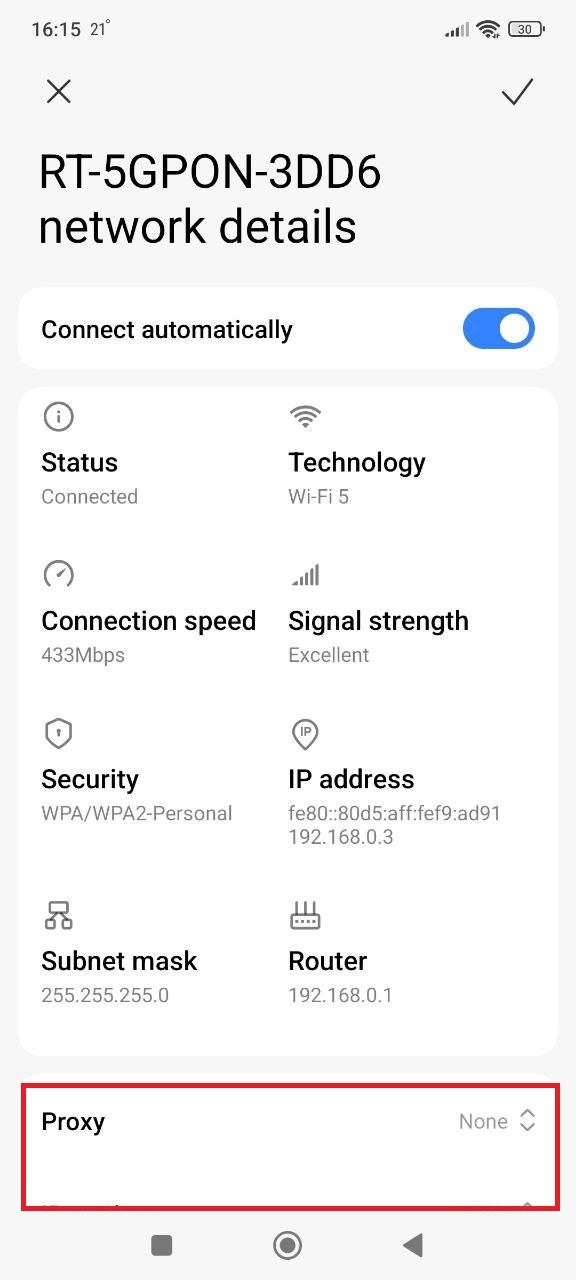
Mobile Chrome on Android has no own proxy menu. Everything through system. Proxy will work for all apps through Wi-Fi.
- Open phone settings, find Wi-Fi section
- Tap arrow in your network name
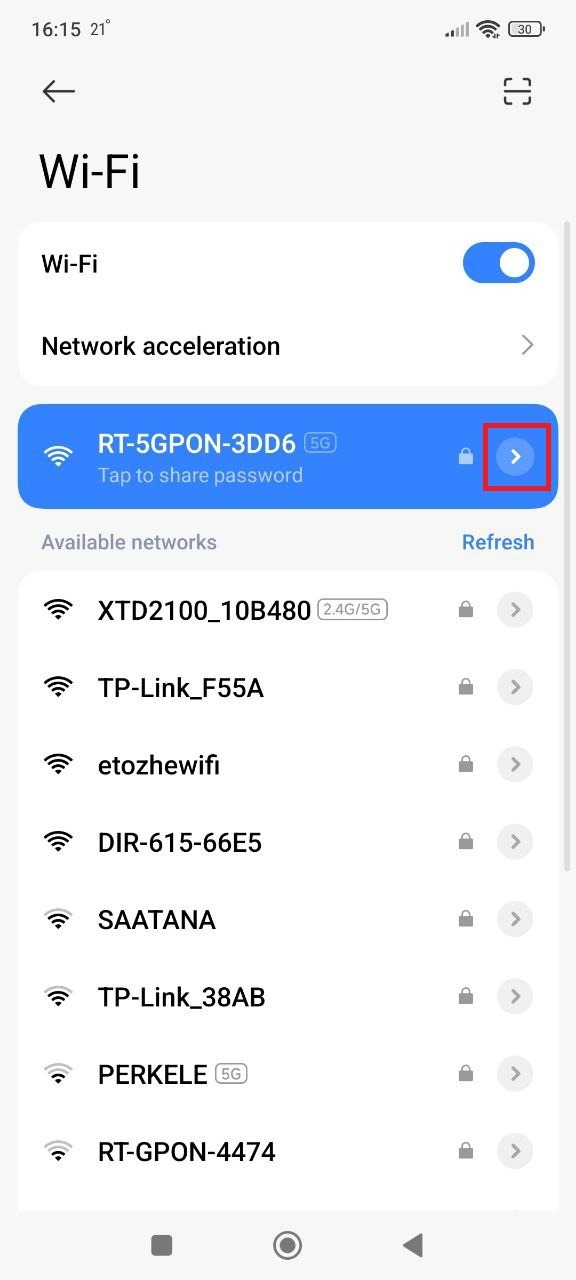
3. Look for proxy and specify manual setup
5. Enter data from GonzoProxy personal account:
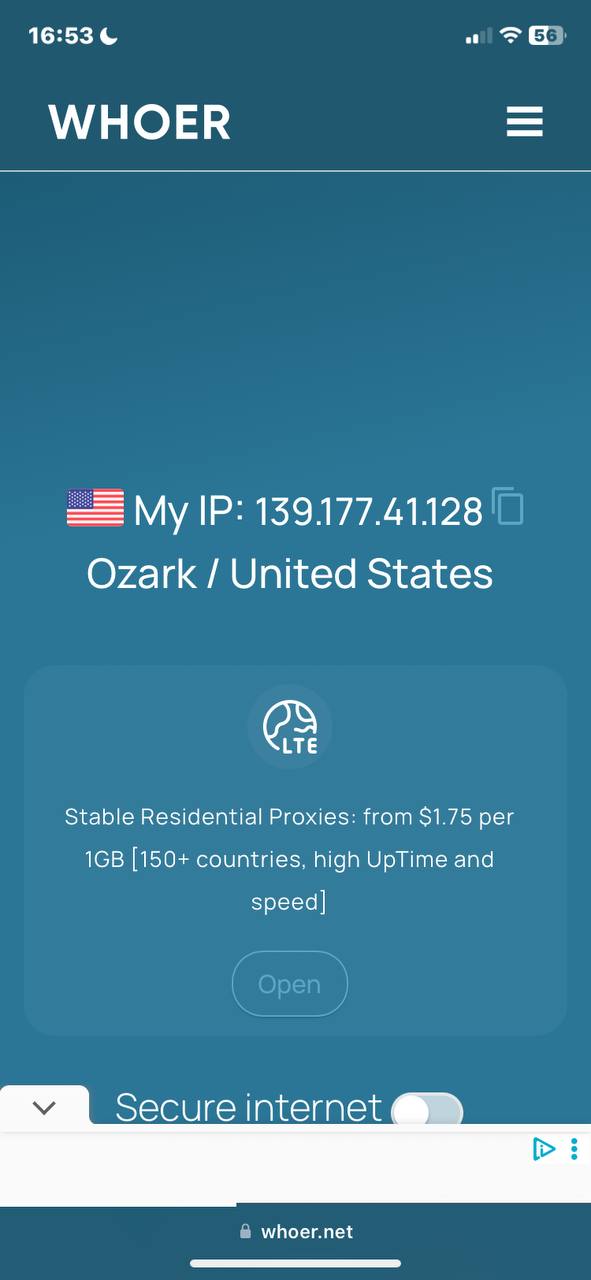
- Server/Host: pool.gonzoproxy.com
- Port: 1000
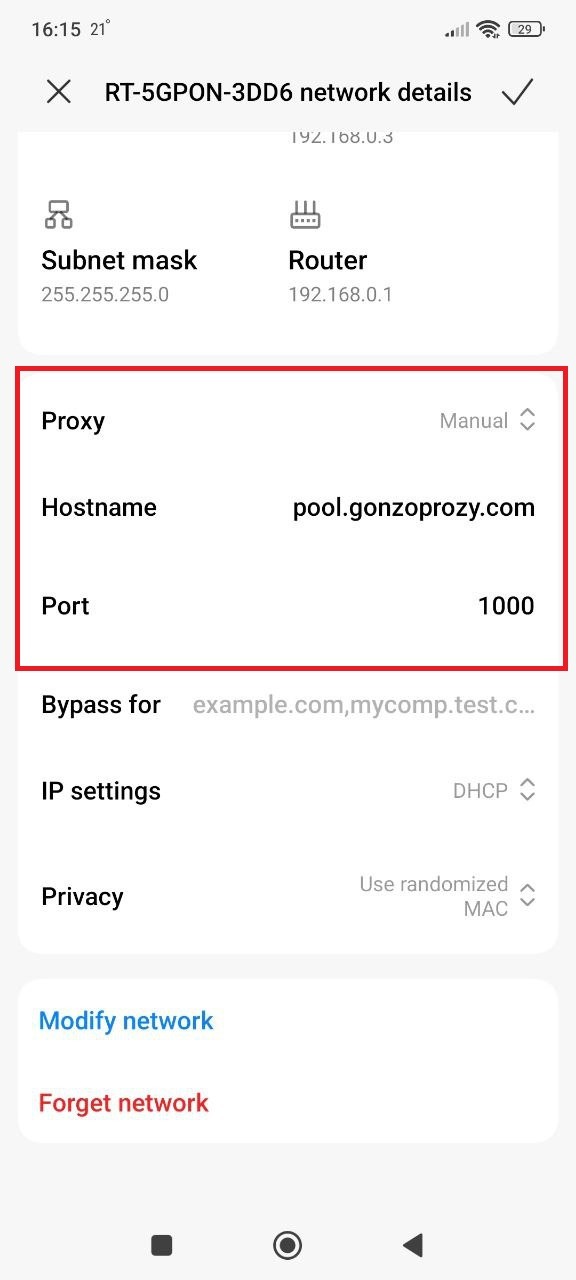
6. Launch browser, we'll be asked for login and password, enter:
- Login: Gonzoj9CiIi_c_US_sd_79_city_Ozark_s_87231IXF_ttl_72h
- Password: RNW78Fm5
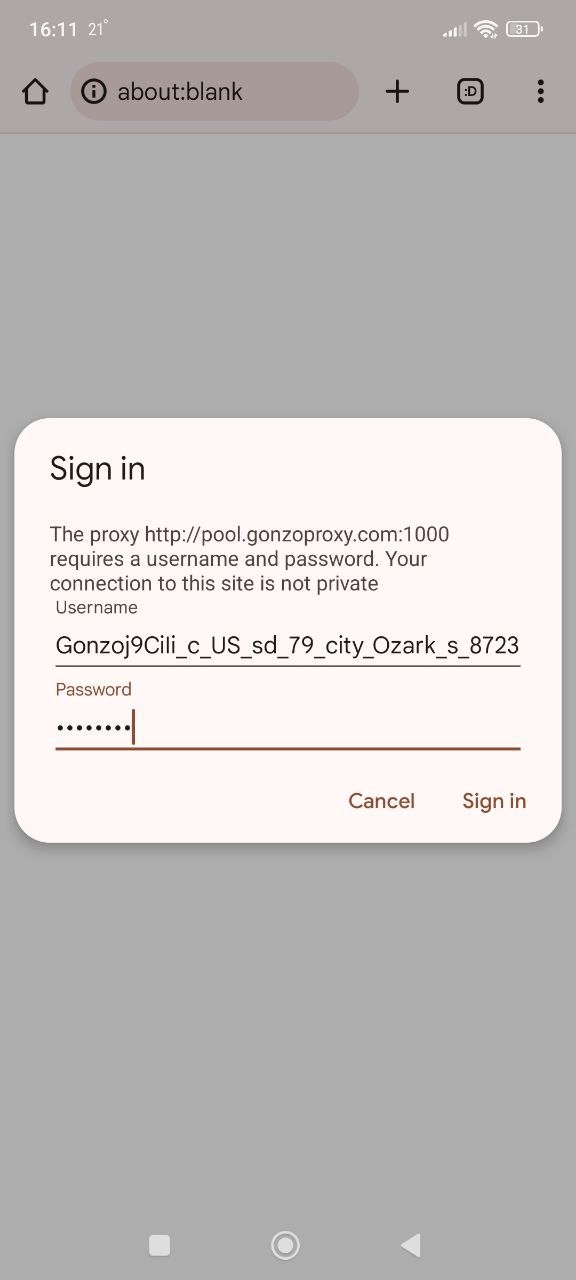
Go to whoer.net site. Everything works
Proxy is tied to specific Wi-Fi network. Connect to another - configure again.
Alternative
For flexibility install special apps. Drony configures proxy for system or individual programs. Works with Wi-Fi and mobile internet. ProxyDroid has similar goodies, especially with root.
Combo of such apps with GonzoProxy gives comfort on mobiles. Residential proxies don't raise suspicions from sites. Critical for mobile surfing where platforms are stricter about anonymous connections.
On iOS and iPadOS proxy for Chrome also through system. Process is same for iPhone and iPad, applies to specific Wi-Fi network.
1. Open Settings, find Wi-Fi section
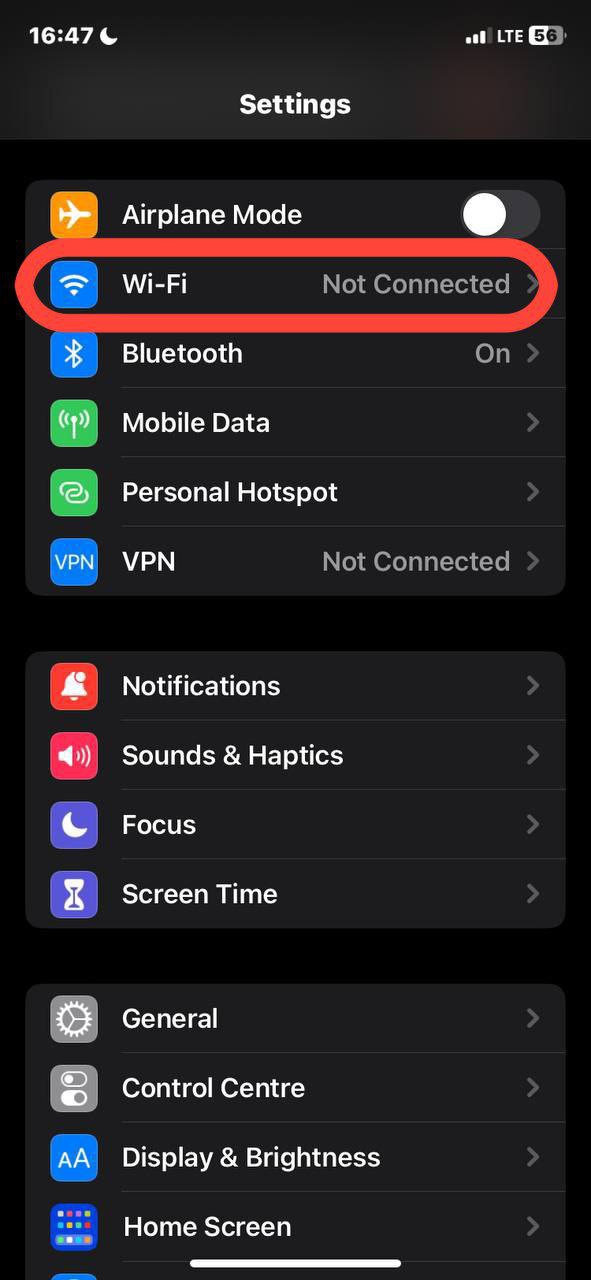
2. See your network? Press information icon next to name
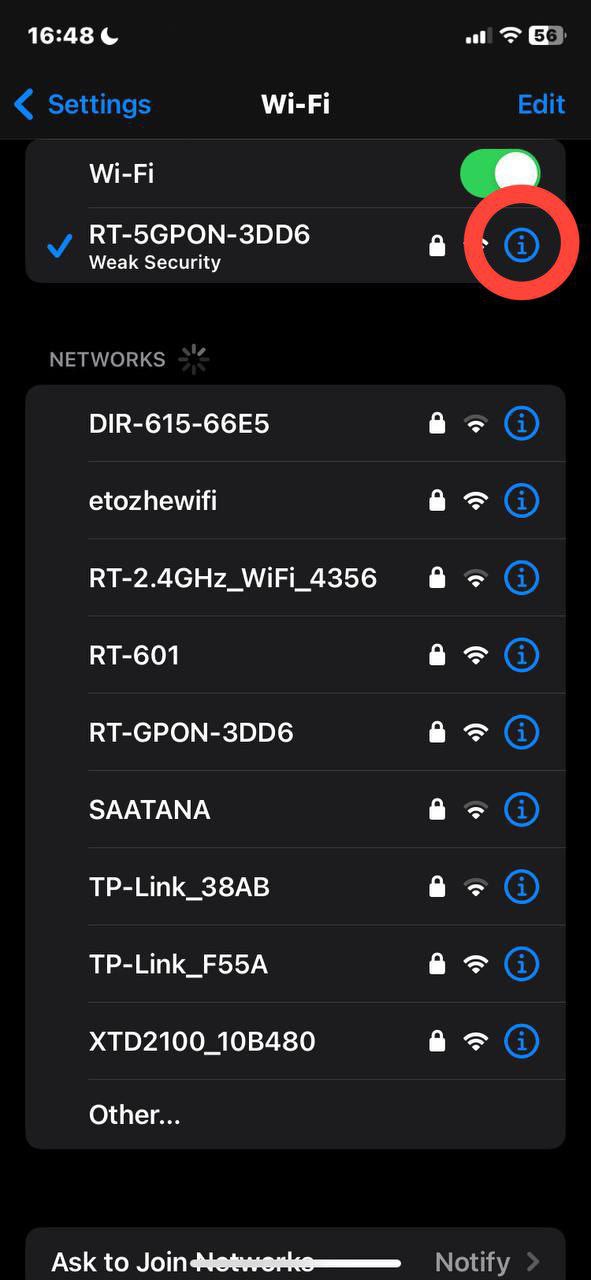
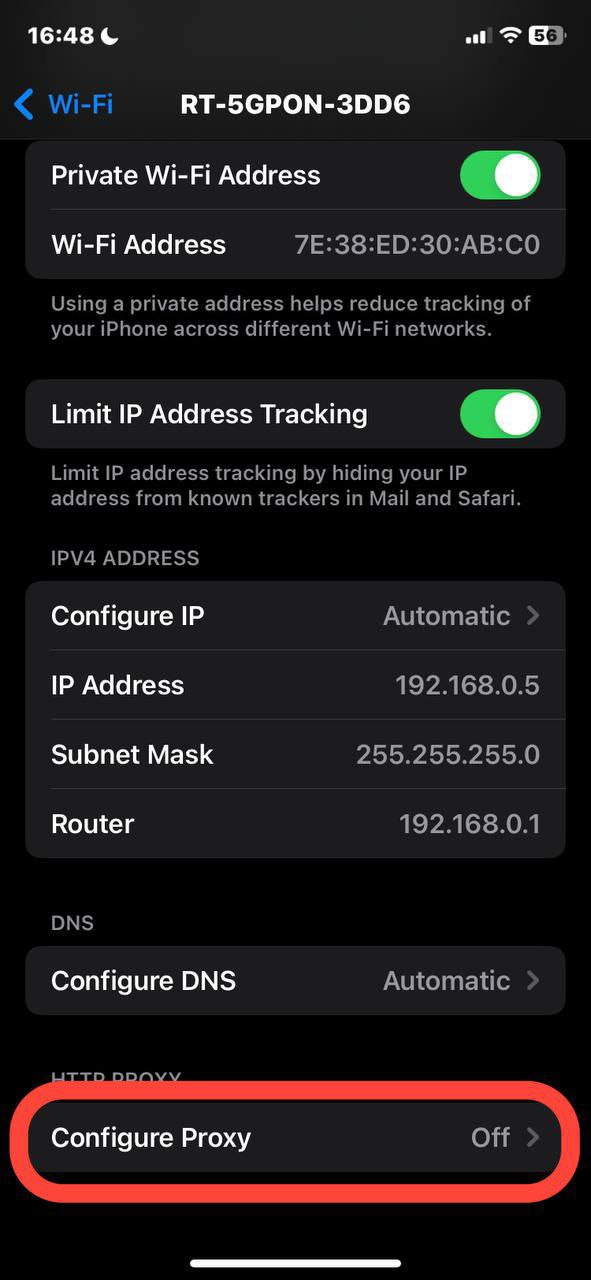
3. Scroll down to "Configure Proxy" item. Change "Off" to "Manual"
4. Enter data received from provider: server address (looks like set of numbers 192.168.1.1), port. For paid proxies add login and password
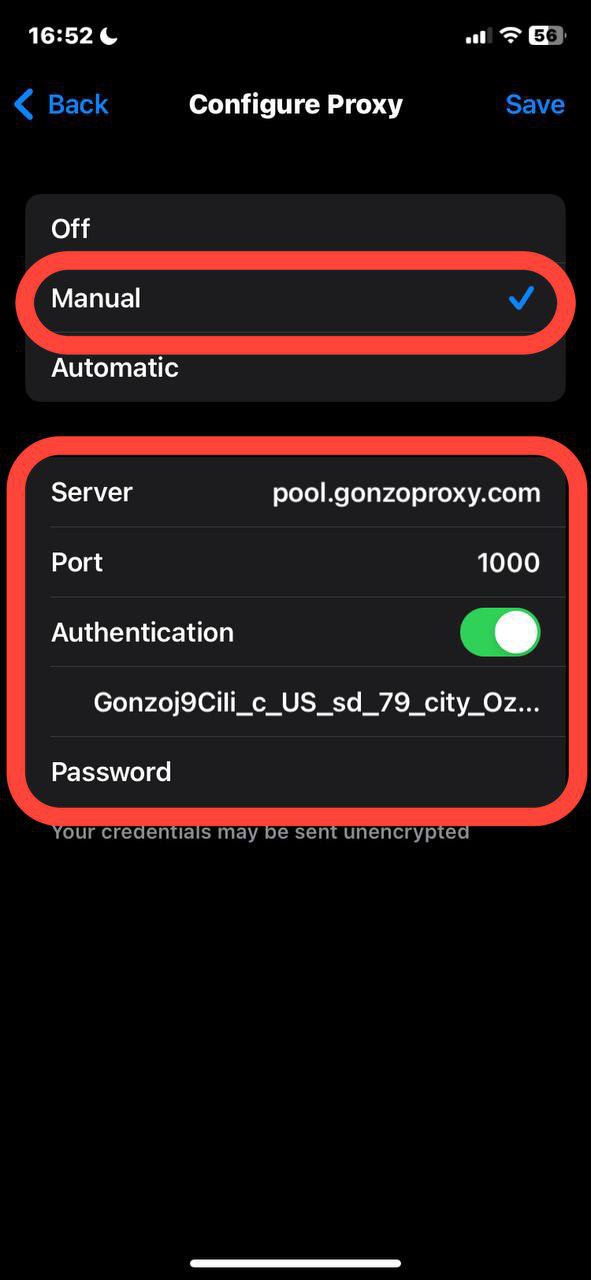
5. Save settings. Done, you're in another country
Settings are tied to network. Switch to another - enter again. For mobile internet standard iOS interface doesn't provide for proxy.
After setup it's important to make sure everything works. Type "my IP" in Google. Go to any of the sites, better to several at once. Service will show current address. If proxy works you'll see IP of country you chose.
When checking pay attention to DNS section in test results. If it shows DNS server of your real internet provider, it means data leak is happening. This means that although IP address changed to proxy address, DNS requests still go through your provider's server.
Speed test is important when working with large volumes. Speedtest.net or Fast.com measure download speed, upload, ping. Compare indicators before connecting to proxy and after its activation.
Speed through proxy will almost always be lower than with direct connection, this is normal. Traffic passes additional route through intermediate server. But drop should be adequate. If direct connection gives 100 Mbps, and through proxy only 5 Mbps, it's signal of problems with server. Quality residential proxies reduce speed by approximately 10-20 percent from initial. Such difference is practically not felt during regular browser work.
If speed is too low, look for cause. Maybe proxy server is located on other end of planet. You're in Russia, and server in Australia. Data packets fly thousands of kilometers back and forth, hence delays. Try choosing server geographically closer to your real location. For example, when working from Moscow take European proxies instead of Asian or American.
Second common reason is server overload. Too many people work through one IP address simultaneously. Bandwidth is divided among everyone, each gets little. Especially this concerns free public proxies. Hundreds of users sit on them simultaneously, speed drops to unacceptable values. Plus such servers often just fall off, connection breaks in middle of work.
Professional services provide private or residential proxies with guaranteed bandwidth. There either you're sole user of specific IP, or number of users is strictly limited.
ERR_PROXY_CONNECTION_FAILED error when logging into Google account
Chrome doesn't connect to proxy. Common cause - address or port entered crookedly. Check data, look for extra spaces. Sometimes server temporarily went down. Look at protocol. Specified HTTP, but proxy only HTTPS or SOCKS5 - won't connect.
Different Chrome tabs show different IP addresses
This happens when there are extensions with automatic switching. You set up rules - one site through one proxy, another through second. Each tab grabs its own IP. For FoxyProxy or Proxy SwitchyOmega with active rules this is normal situation.
Didn't touch rules, but IPs are still different? Most likely system settings conflict with extension. Turn off proxy in Windows or macOS parameters, leave only extension. Or vice versa - remove extension, let it work through system.
Sites with HTTPS certificates don't open
Usually it's about protocol. Took HTTP proxy, trying to access HTTPS site - doesn't let in. Switch to HTTPS proxy or SOCKS5, with them secure connections open normally.
There's another story. Proxy tries to look at encrypted traffic through SSL inspection, only its certificate isn't recognized by system. Chrome cuts such connection as dangerous. On corporate proxy? Go to admin, let him install needed certificate.
Proxy authentication constantly asks for login and password
Maybe just entering data incorrectly. Copy login with password directly from proxy provider, so you definitely don't make mistake.
Or your proxy works through IP binding, not through login-password. Then it shouldn't ask for account at all. Clarify with provider how their authentication is configured.
When authorizing through Google blocking occurs
Google heavily filters suspicious logins. Data center proxies or public IPs that already messed up everywhere, it immediately detects. Take residential proxies, for Google they're like regular home users.
Another moment - clean cookies with cache in Chrome before logging in from new proxy. Google remembers where you usually log in from. Suddenly IP changed from Moscow to Texas - protection immediately triggers.
Sites see real IP even with active proxy
Check WebRTC for leaks. Bunch of sites through WebRTC figure out real IP, even if proxy is on. Install extension that blocks WebRTC, or turn it off in Chrome hidden settings.
Also watch DNS requests. Flying directly through provider's DNS? Sites will figure out real location by them. Need proxy with its own DNS or configure DNS manually in system.
FAQ


In Chrome proxy is configured three ways - through system, extensions or mobile settings. System option suits when you work constantly through one server. Extensions help out when you need to often jump between profiles.
For normal work take residential proxies GonzoProxy, not free public IPs. Access to millions of addresses around the world, smart rotation, decent speed. With promo code START15 you get 15% discount on first purchase.
.webp)