


Most teams start the same way: a dozen profiles, each launched by hand, every action repeated in every window separately. While you have five accounts, that is bearable. Once there are fifty, manual work turns into a bottleneck where errors multiply and time drains away on repeating the same clicks over and over.
Afina Browser offers a different approach. Instead of doing everything by hand, you describe the process once and hand it off to the system. The browser keeps the schedule itself, runs sessions in parallel, restarts whatever fails, and repeats actions across windows. Below we break down how to assemble a self-driving pipeline from this, where your role shifts from operator to the person who configures and supervises.

Contents
Afina is an antidetect browser in which every profile is fully isolated. Cookies, cache, and local data live separately for each account, so sessions never overlap. On top of that sits the environment fingerprint, which stays stable within a profile.
Built over this isolation is an automation hub: task groups, a trigger module, and a synchronizer. This layer is exactly what turns the browser from a tool for viewing pages into a platform where routine operations can be described with a script and run without human involvement. For a closer look at the logic of the approach itself, there is an overview piece on browser automation.
It is important to understand the boundary: Afina gives you infrastructure and control, not magic. Everything works exactly the way you set it up, and that is genuinely a strength, because the process becomes predictable.
This stack makes sense when you have many accounts and the actions on them are uniform. If you open a profile, run through a few steps, close it, and then repeat the same thing thirty more times, you are already a prime candidate for automation.
The approach is useful in several typical situations:
- teams that run dozens or hundreds of accounts and do not want to scale headcount in proportion to the number of profiles;
- projects where some actions must run on a schedule, even when no one is at the computer;
- scenarios where the same operation has to be repeated synchronously across many windows at once;
- processes in which a single session error must not halt the entire flow
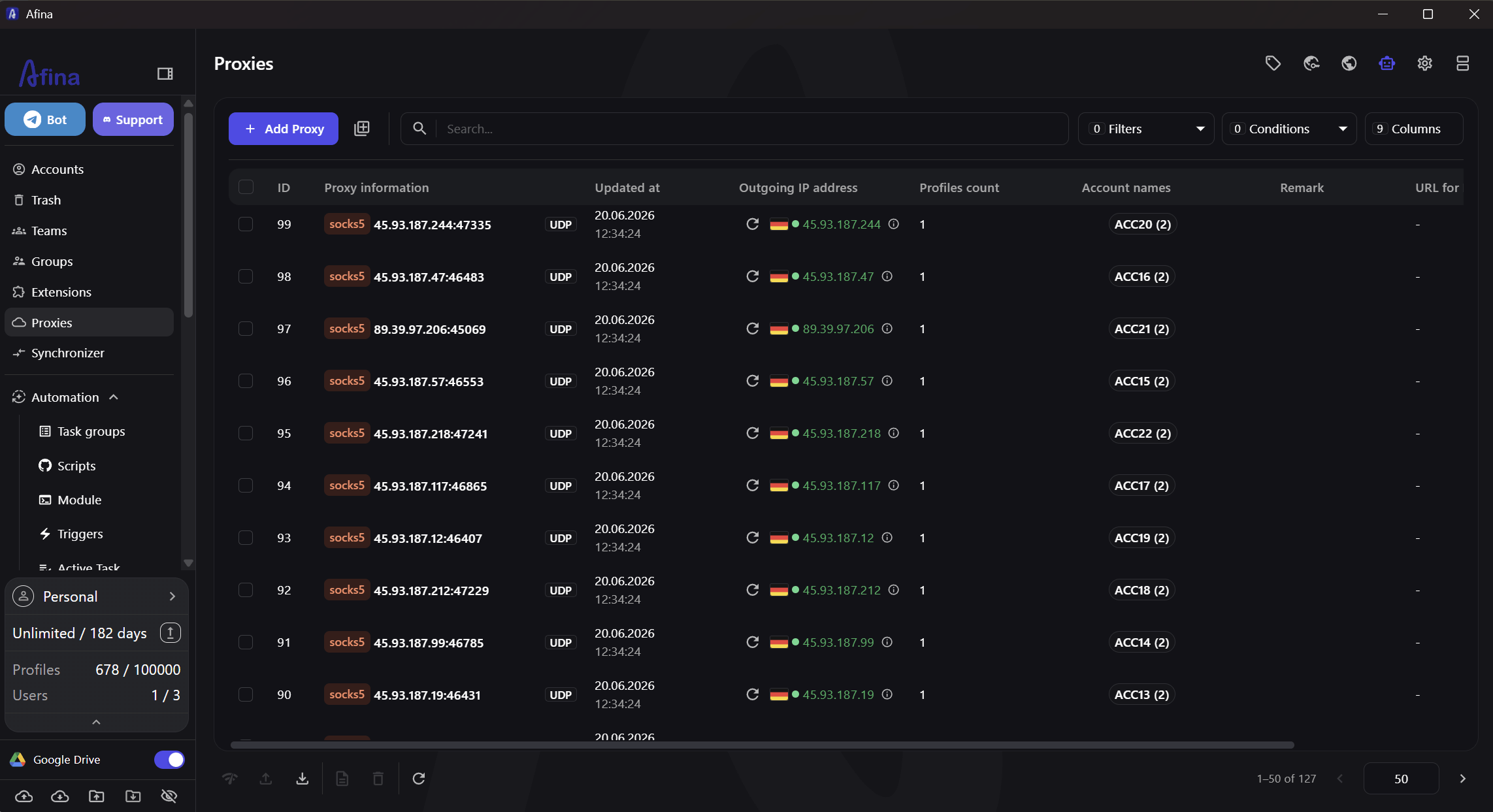
If you have two or three accounts and the actions differ every time, heavy automation will be overkill. What matters here is volume and repetition, not the mere fact of multi-accounting.
Task groups are where a chaotic set of launches becomes a managed flow. The settings live in the "Automation" section, under "Task groups," and this is exactly where you define how many accounts run at once and under what conditions.
First, you should set two basics: how long a single session can last and how many run in parallel. The "Script limit (min)" field caps session duration so a hung task does not block the queue indefinitely. The "Active sessions" parameter sets how many accounts run at a given moment, and this is your main lever for balancing speed against load.
Next come the stability and scheduling mechanisms:
- the "Retry" toggle automatically restarts a task after an error, so a single failure does not leave an account unprocessed;
- the "Schedule" block with the "From" and "To" fields defines the time window in which the group should run;
- the alternative "Run after" option sets a simple start delay in hours;
- the "Enable" toggle starts the queue scheduler, after which the group begins living by the rules you set
Putting these settings together gives you a controlled pipeline: it knows how much to pull at once, when to start, and what to do with errors. The full list of fields and their behavior is easy to cross-check against the task groups reference.
Task groups are responsible for how the work runs. The trigger module is responsible for when it launches itself. This is the second layer of the pipeline, the one that removes the need to press "start" by hand.
The most powerful mode here is Cron: it launches tasks at a set time interval without human involvement. The setup logic is simple and linear, so you can assemble a trigger in a few minutes.
The sequence of steps looks like this:
- click "Add trigger" and choose Cron mode;
- specify the script or module to run and the time in the "Interval (seconds)" field;
- in the "Advanced settings" block, select the right "Task group";
- turn on the "Active" toggle and click "Create"
After that, the system launches the process on its own at the set rhythm, and you see the result rather than the moment of launch. Alongside it is a "Manual" mode, which lets you launch tasks via Telegram when you need control over the launch moment. All trigger types and their parameters are summarized in the triggers table.
Combining Cron with task groups is precisely the shift from manual work to production: the process launches itself, runs in parallel, and recovers after failures.
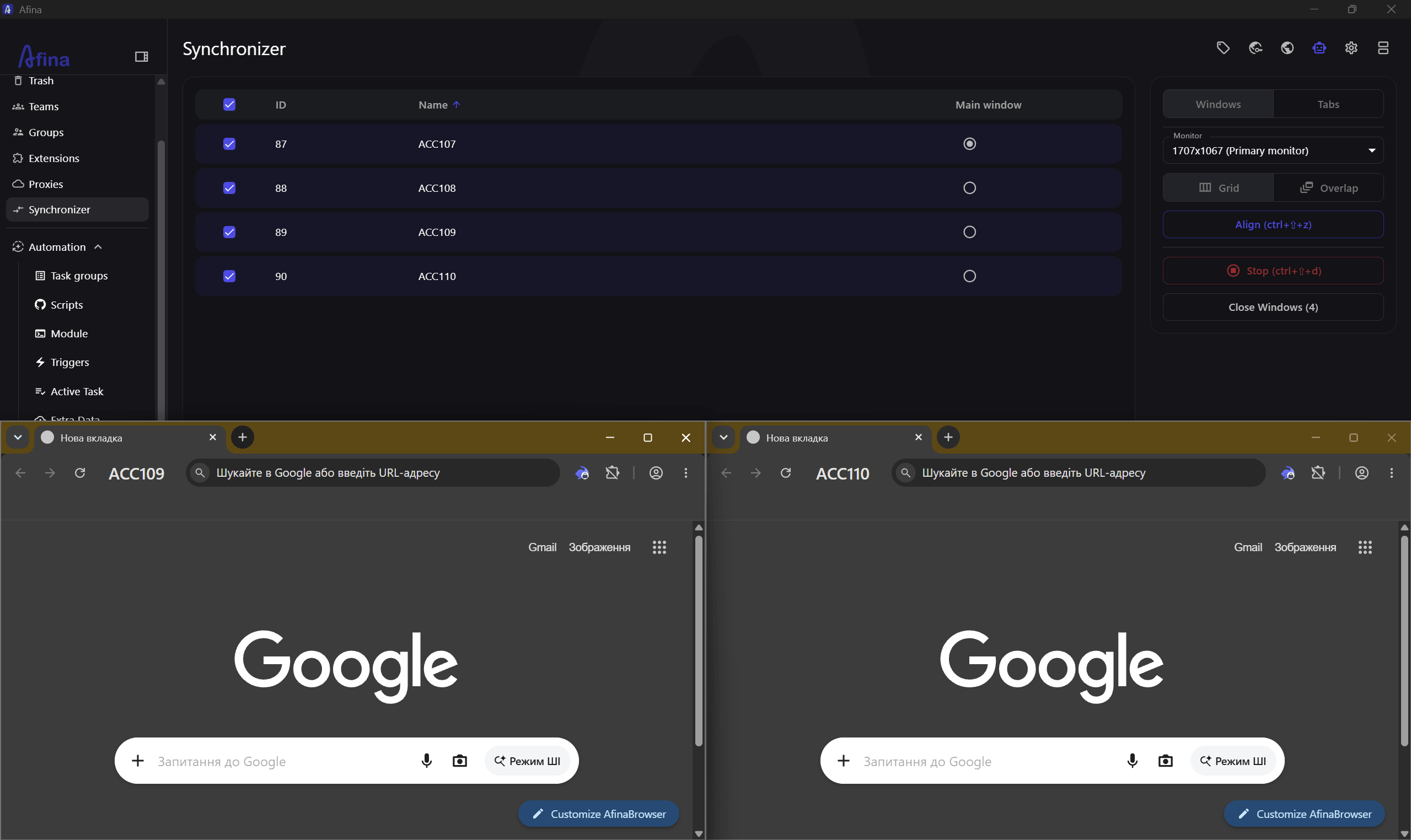
Not all work should be handed to scripts. Sometimes you need to perform the same action across many windows at once, but under your own control and eyes. That is what the synchronizer is for: it repeats actions from the main window across all the others.
The tool works only with already-open accounts, and there must be at least two of them. So this is not about background launches, but about live, synchronous control over several sessions at the same time.
The basic setup scenario is as follows:
- open the "Synchronizer" section and select the accounts you need;
- assign one of the windows as the "Main window" and choose a "Monitor" for display;
- set the layout mode to "Grid" without overlap or "Overlap";
- align the windows with "Align" (Ctrl+Shift+Z) and click "Start" (Ctrl+Shift+S)
The "Tabs" tab is separately useful: it has "Sync tabs," along with "Open tab," when a single address opens in all windows at once, and "Close empty tabs" for cleanup. Whatever you do in the main window is repeated everywhere, and that sharply cuts the time spent on uniform manual operations without moving to full-blown scripts.
All the automation above runs on top of a network layer, and that is exactly what the proxy provider supplies. In this stack, GonzoProxy acts as the IP address supplier, meaning it provides the external network layer on which Afina's isolated profiles run.
For its part, Afina supports proxies over the HTTP, HTTPS, and SOCKS5 protocols, so an IP from the proxy service connects to a profile through built-in means. Each profile stays isolated by cookies, cache, and local data, while the proxy adds a separate network contour to that isolation.
The division of roles here is clear: Afina handles profile management, automation, and synchronization, while the proxy provider handles the stable IP layer beneath them. Together this gives you a complete loop where both the environment and the network are tuned to your process.
Promo codes for new users:
- SALE20 - 20% off all plans except Max
- SALE30 - 30% off the Max plan

.webp)