Ever run into a situation where you've set up your proxies, but accounts still get banned? Or the speed drops so much that working becomes impossible? Thing is, just buying proxies and connecting them isn't enough. You need to regularly check if they're actually working properly. Let's figure out how to check if a proxy server is being used, and what to do when something goes wrong.

Contents
How to check if proxy is enabled on PC (Windows, macOS, Linux)
On Windows, it's pretty straightforward. Go to "Settings", look for "Network & Internet", then "Proxy". See a disabled toggle and empty address fields? Your proxy isn't active.
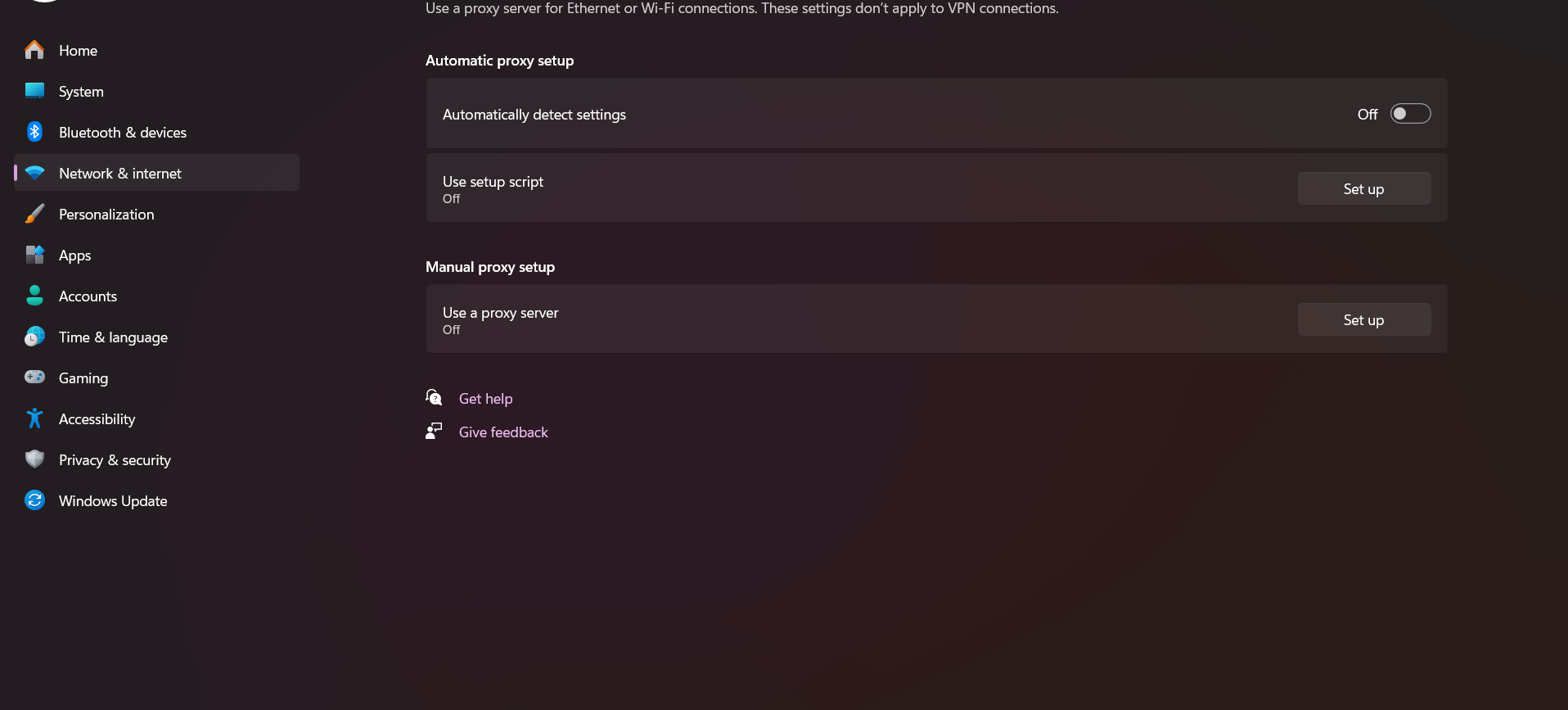
By the way, lots of people forget to check this after installing VPN clients, which often change these settings automatically.
macOS users need to dig a bit deeper. Go to "System Preferences", select "Network", click on your connection (Wi-Fi or Ethernet), hit "Advanced" and switch to the "Proxies" tab. You'll see a list of protocols — HTTP, HTTPS, SOCKS.
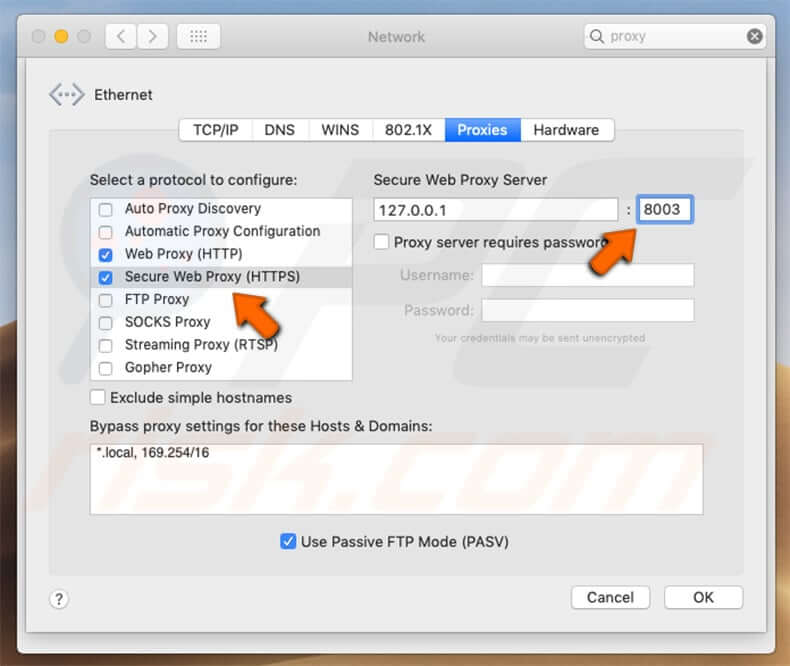
If even one checkbox is ticked and a server address is entered, you're working through a proxy.
Linux traditionally offers several paths. The quickest way to check is opening the terminal and typing echo $http_proxy. Got an address in response? Proxy is working. Empty line means direct connection.
You can also check the /etc/environment file, where global proxy settings for the whole system are usually written.
Checking settings in browsers (Chrome, Firefox, Yandex, Safari)
Chrome and Yandex Browser don't bother with their own settings — they grab Windows system parameters. To check, type chrome://settings/ in the address bar, scroll down, find "Advanced", then "System" and "Proxy settings".
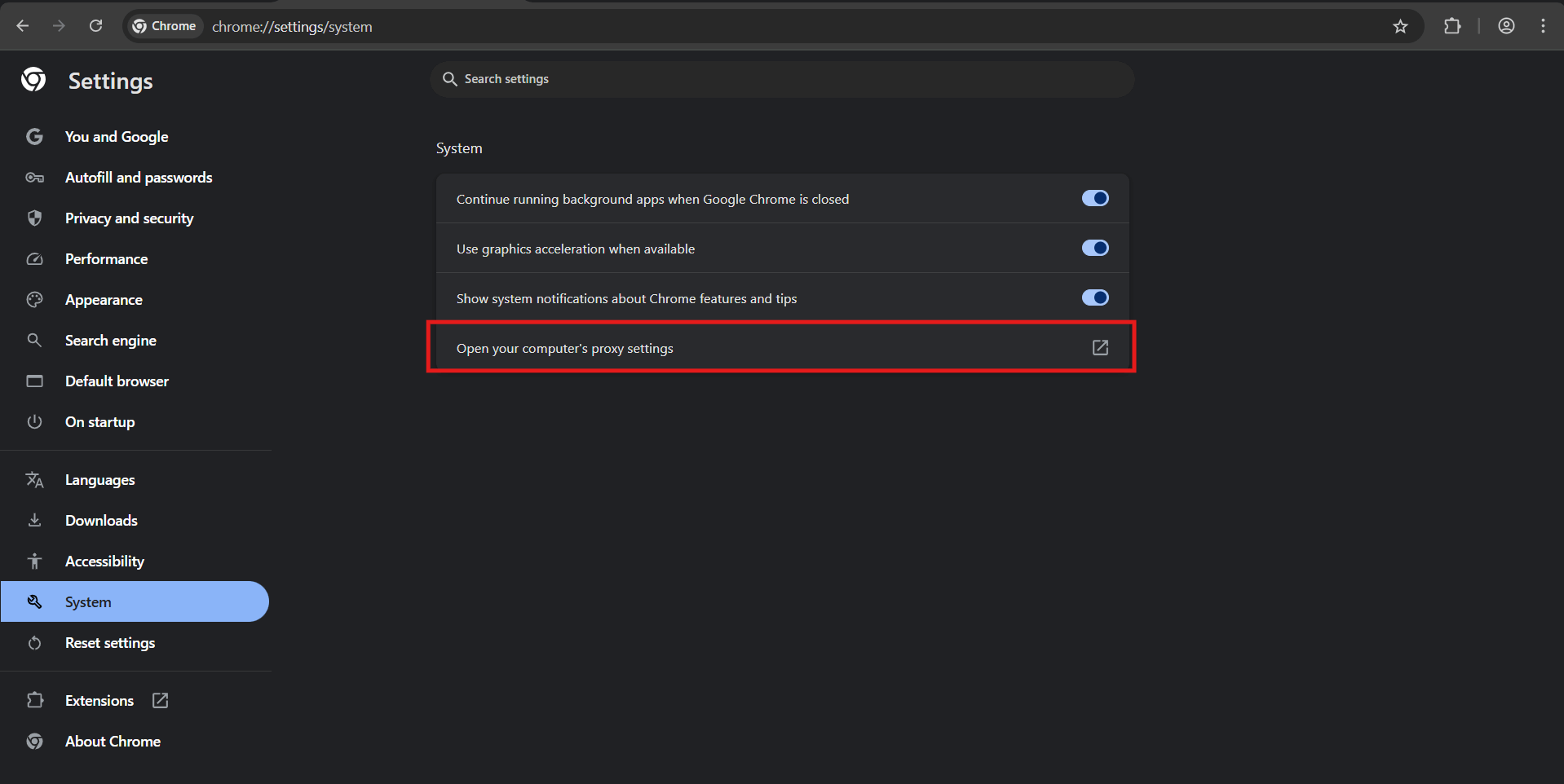
You'll be redirected to Windows system settings.
Firefox loves independence! It has its own proxy settings. Go to "Settings", look for "General", scroll to "Network Settings" and click "Settings".
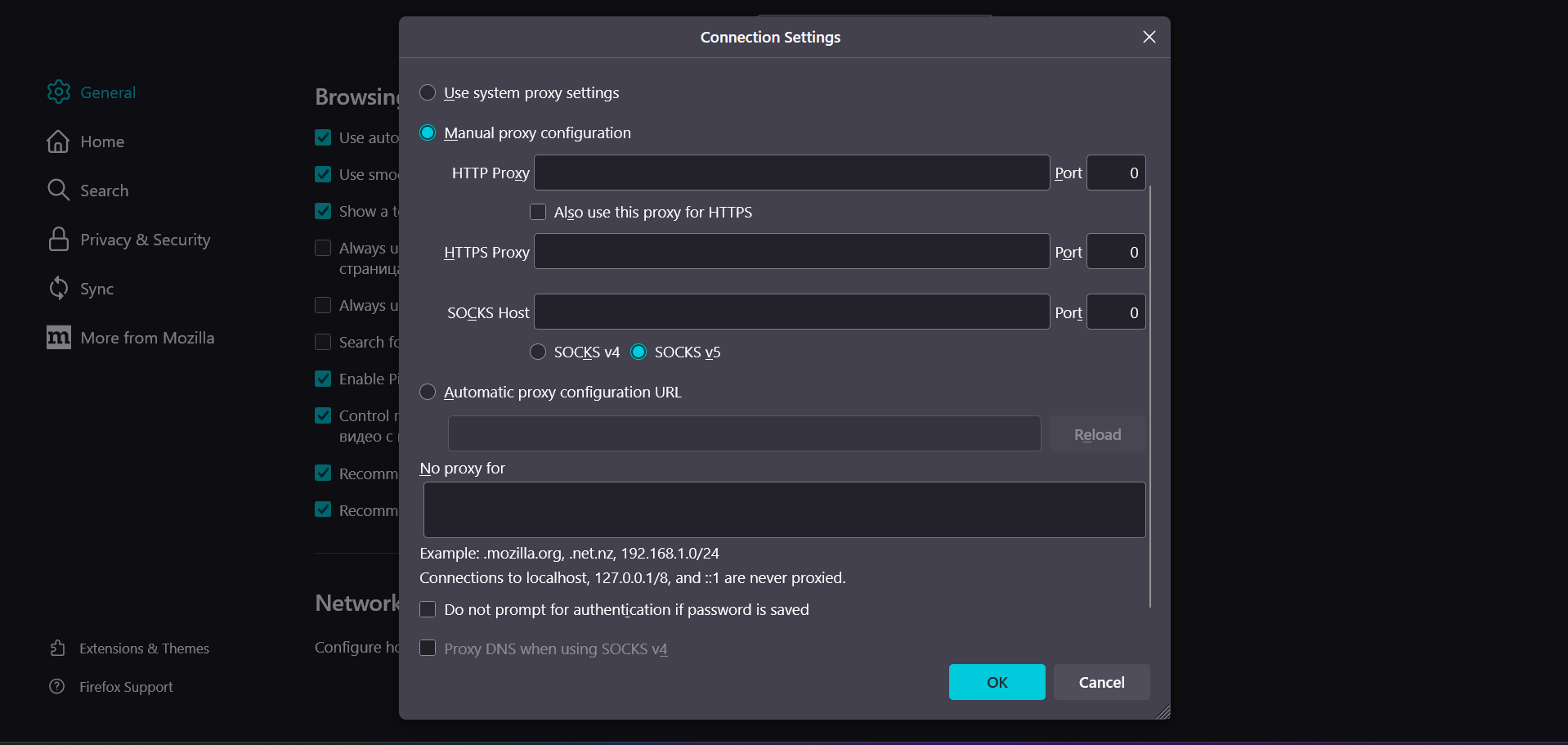
There you can set proxy just for Firefox without touching system settings. Handy when you need to separate work and personal traffic.
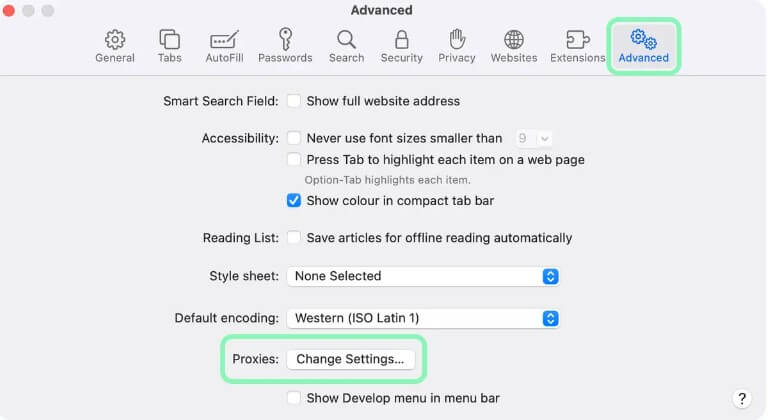
Safari on Mac completely relies on system settings. You can check via "Preferences" → "Advanced" → "Change Settings" → "Proxies", but essentially it just redirects you to network system settings.
How to determine if connection goes through proxy (IP checkers, whoer.net and others)
Here's where it gets interesting. You might think your proxy is working, but traffic actually goes directly. That's why always check through external services.
Whoer.net — favorite for quick checks.
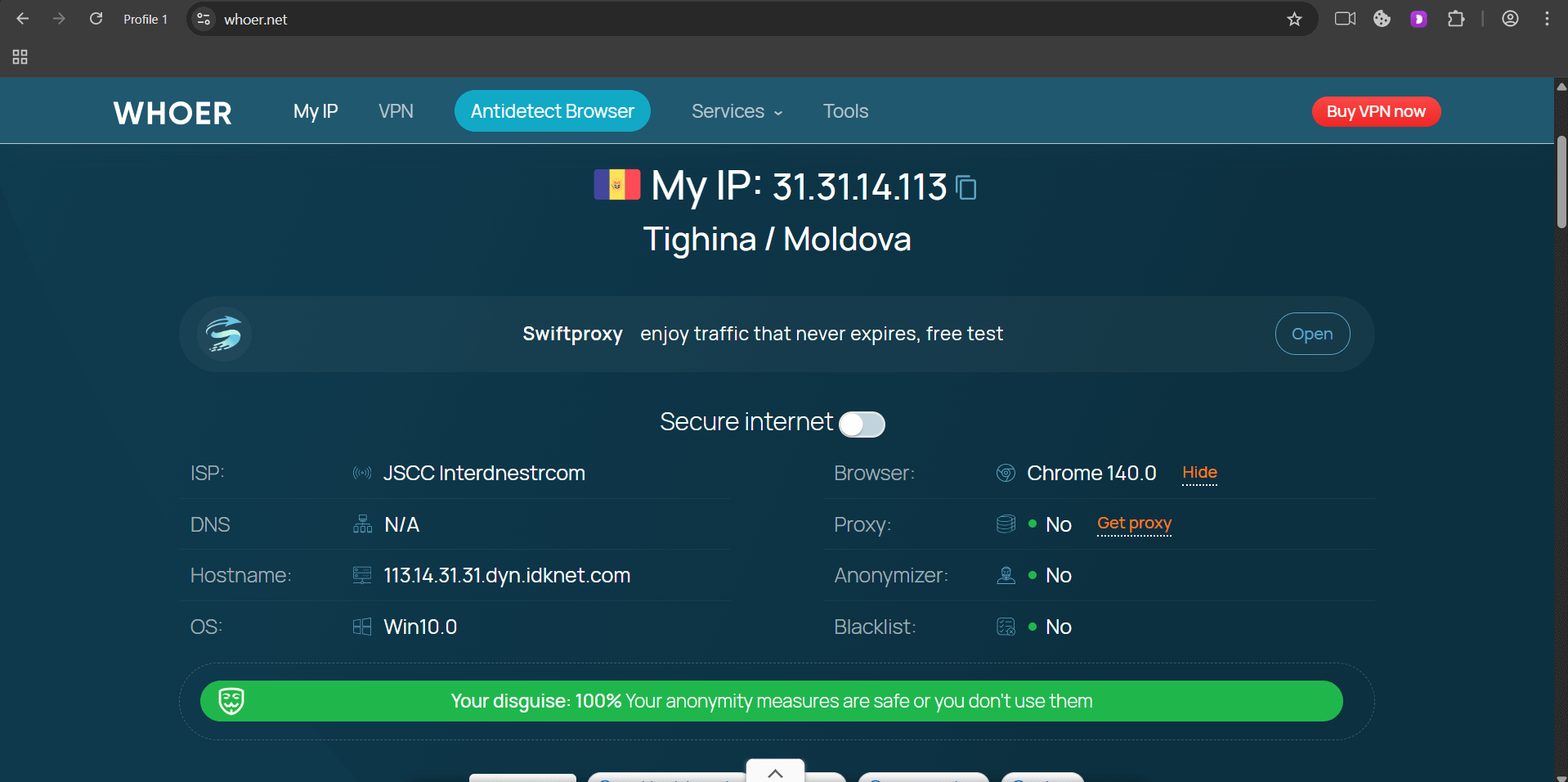
Visit the site, immediately see your current IP, country, provider. If proxy is active, you'll see "Proxy: Yes" in red. The service also shows anonymity level and tons of other parameters.
IPinfo.io — minimalist service without fluff.
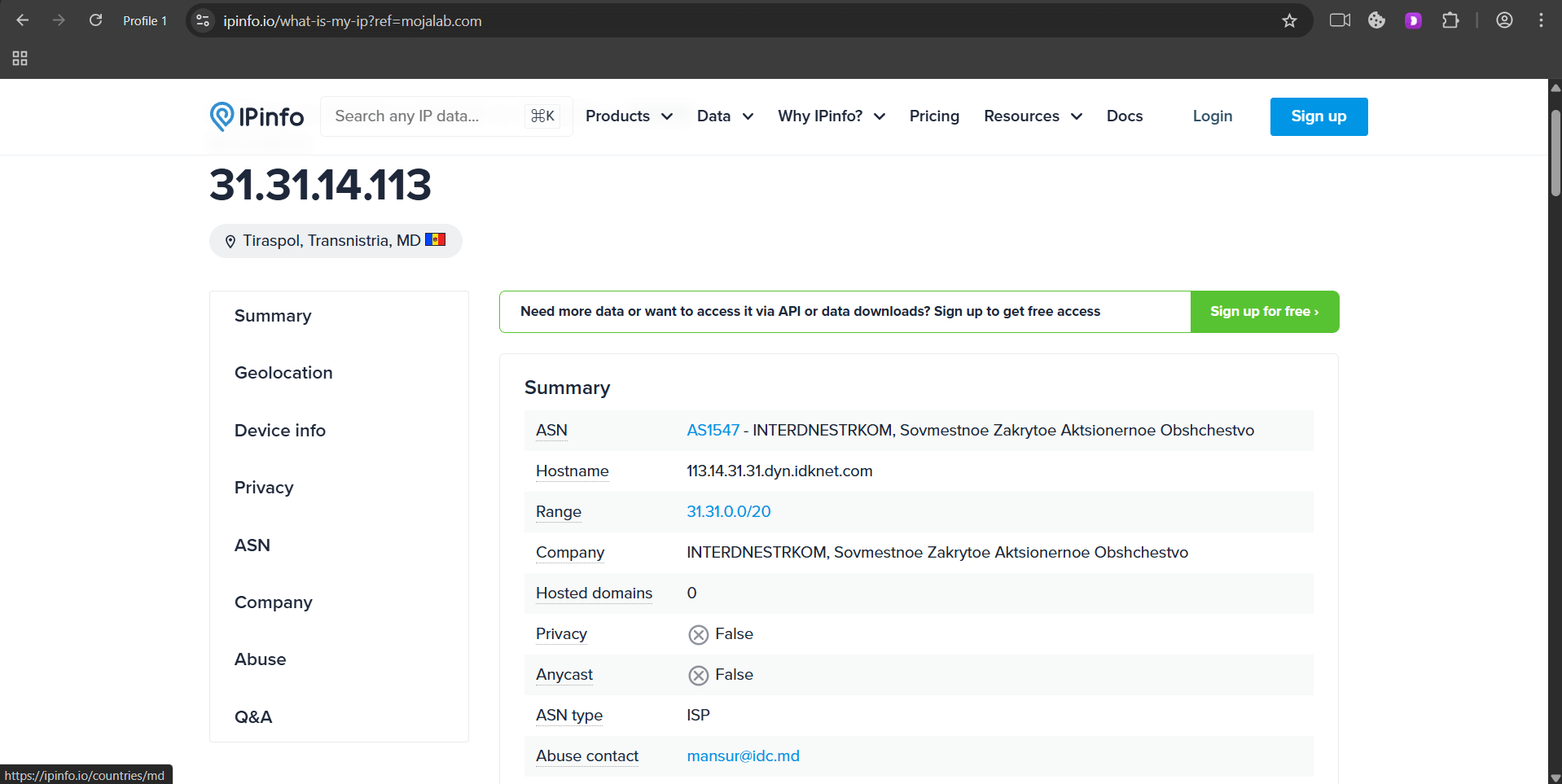
Shows IP, city, region, postal code. Open it first without proxy, remember your real IP, then enable proxy and check again. IP changed? Great, proxy works.
2ip.ru — Russian alternative with extra features.
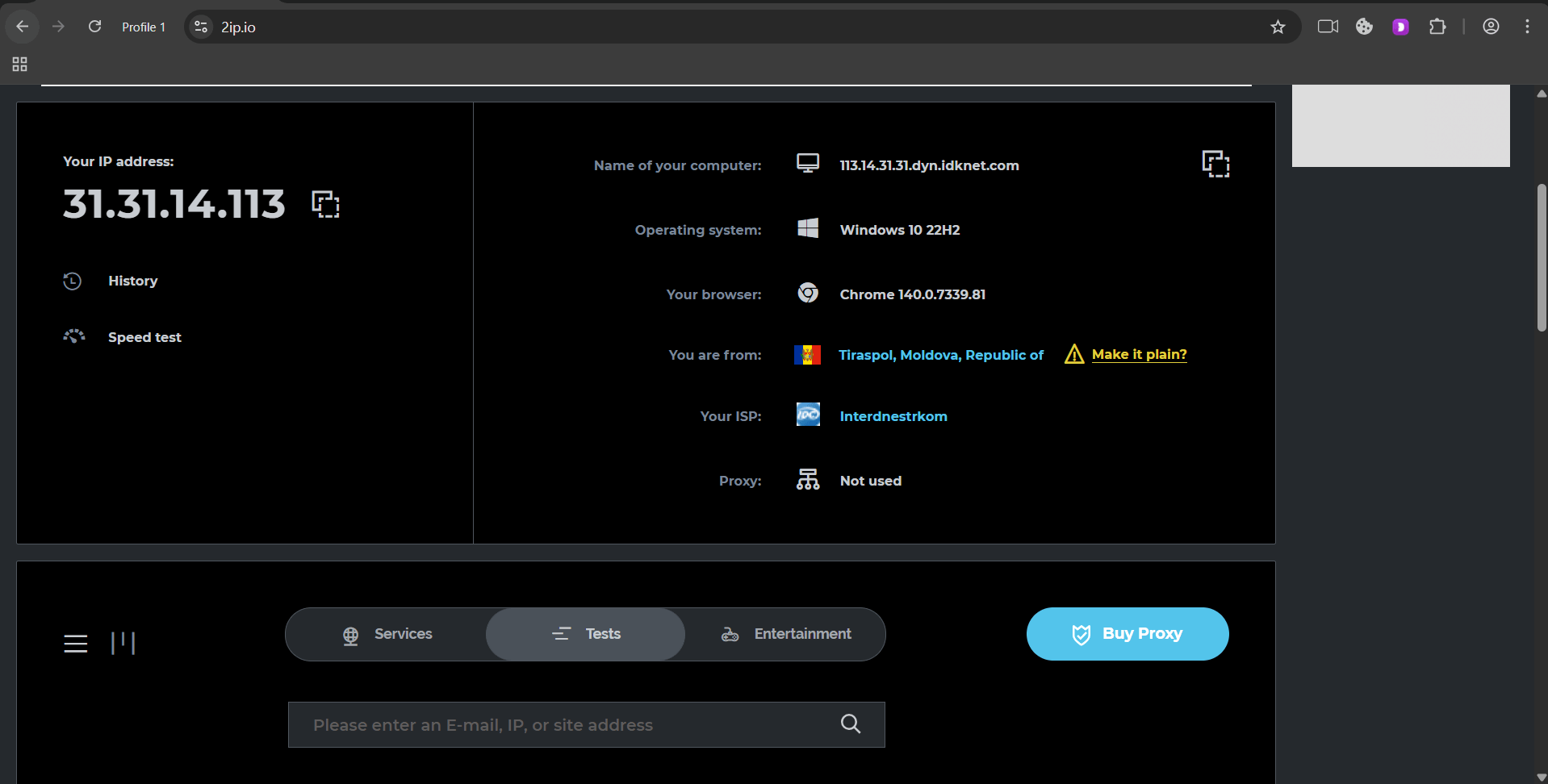
Besides basic info, shows proxy type (HTTP, SOCKS4, SOCKS5), anonymity level (transparent, anonymous, elite). Also has blacklist checking — useful stuff.
Online proxy checking services
Okay, you've confirmed proxy is enabled. But is it working properly? Here's where specialized services come in.
Proxy-checker.net — Swiss army knife among checkers.
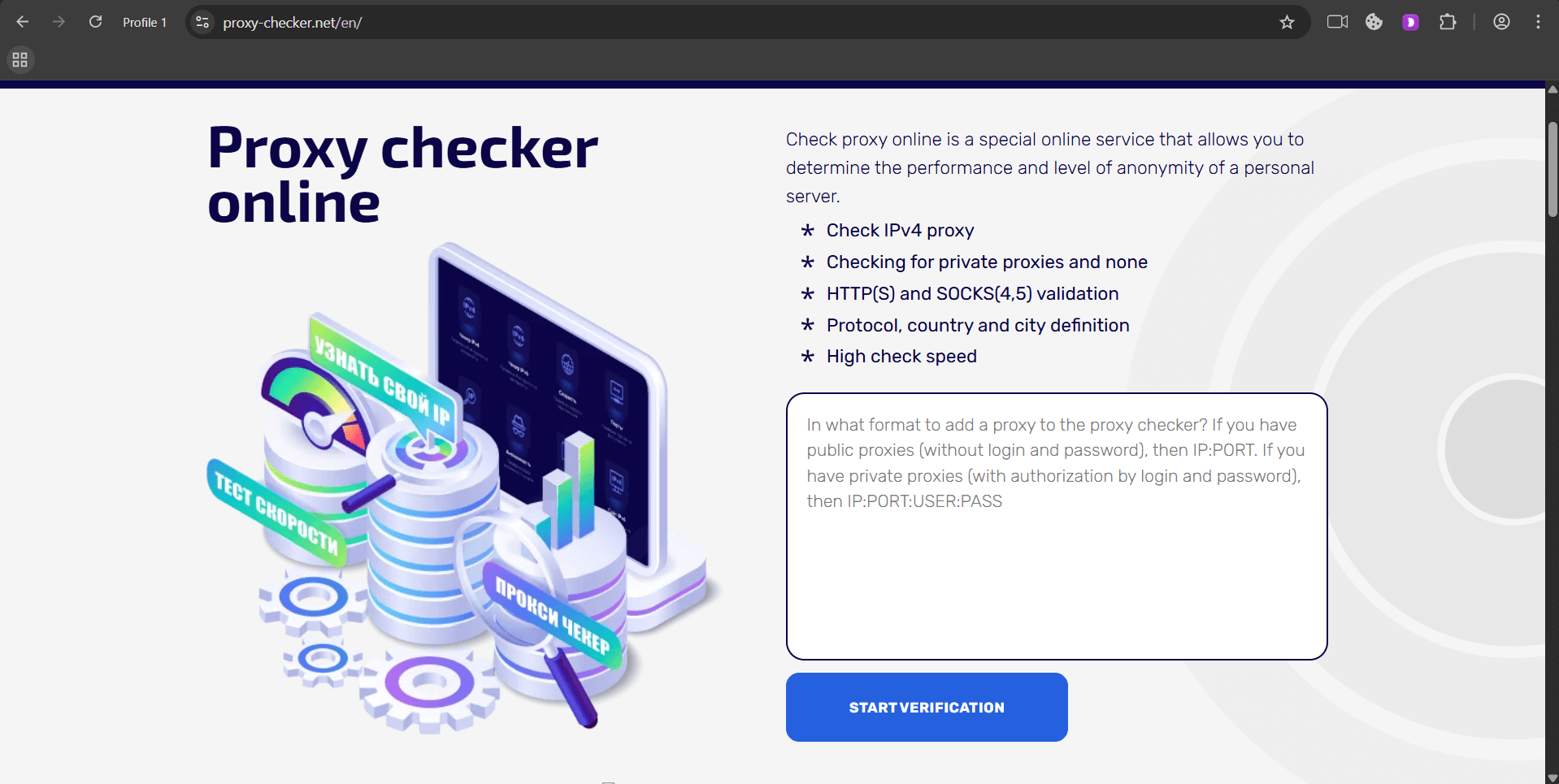
Enter proxy address and port, get the full breakdown: connection speed, real geolocation, anonymity level. Service also shows which headers your proxy transmits — sometimes you can find your real IP there, which immediately exposes you to websites.
Hide.mn/proxy-checker — convenient tool for validity checking.
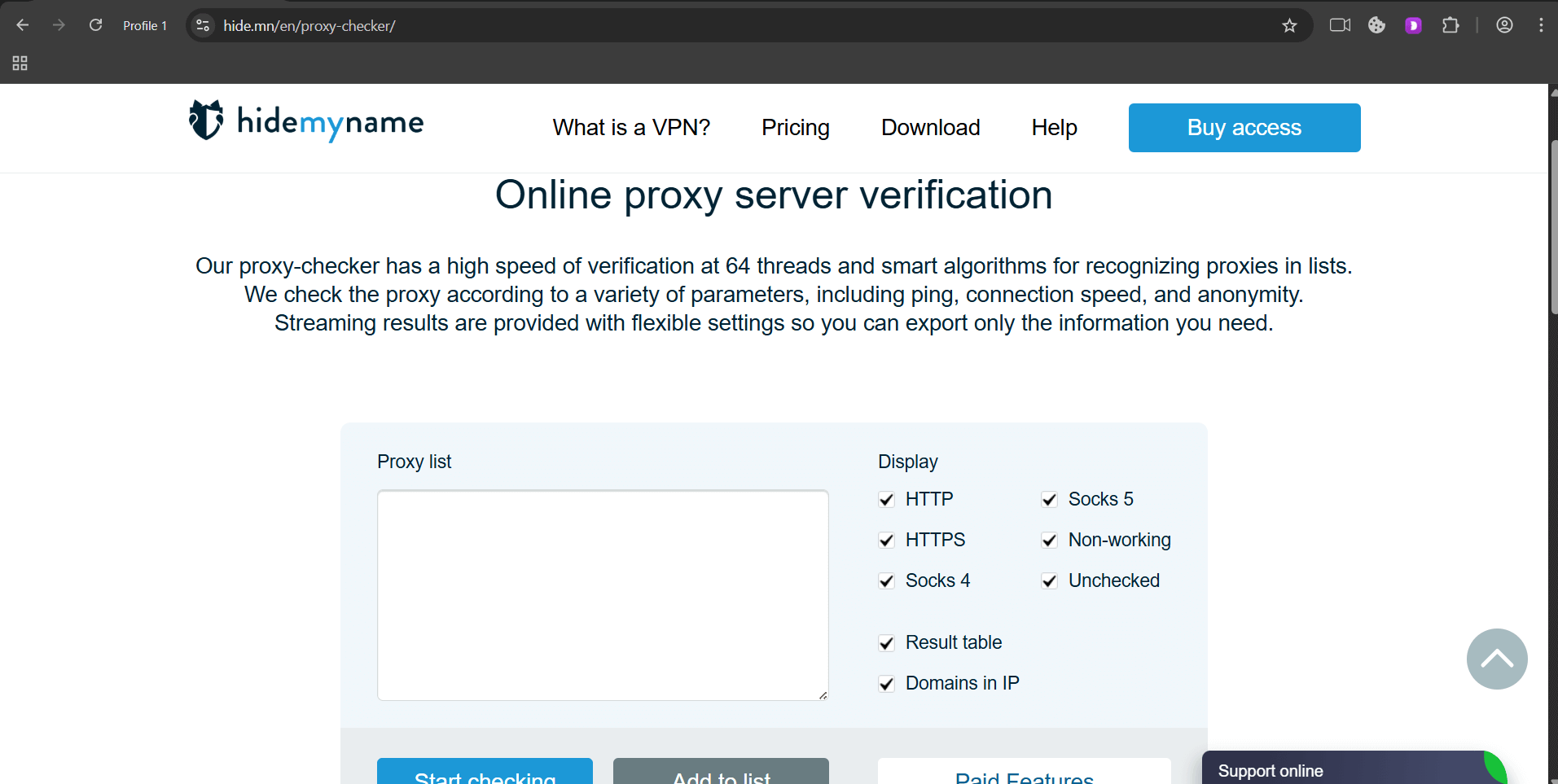
What's really cool is you can throw in a hundred proxies and check them all at once. Service will show which are alive, which are dead, and even determine average response time for each.
Checkerproxy.net — simple but effective service.
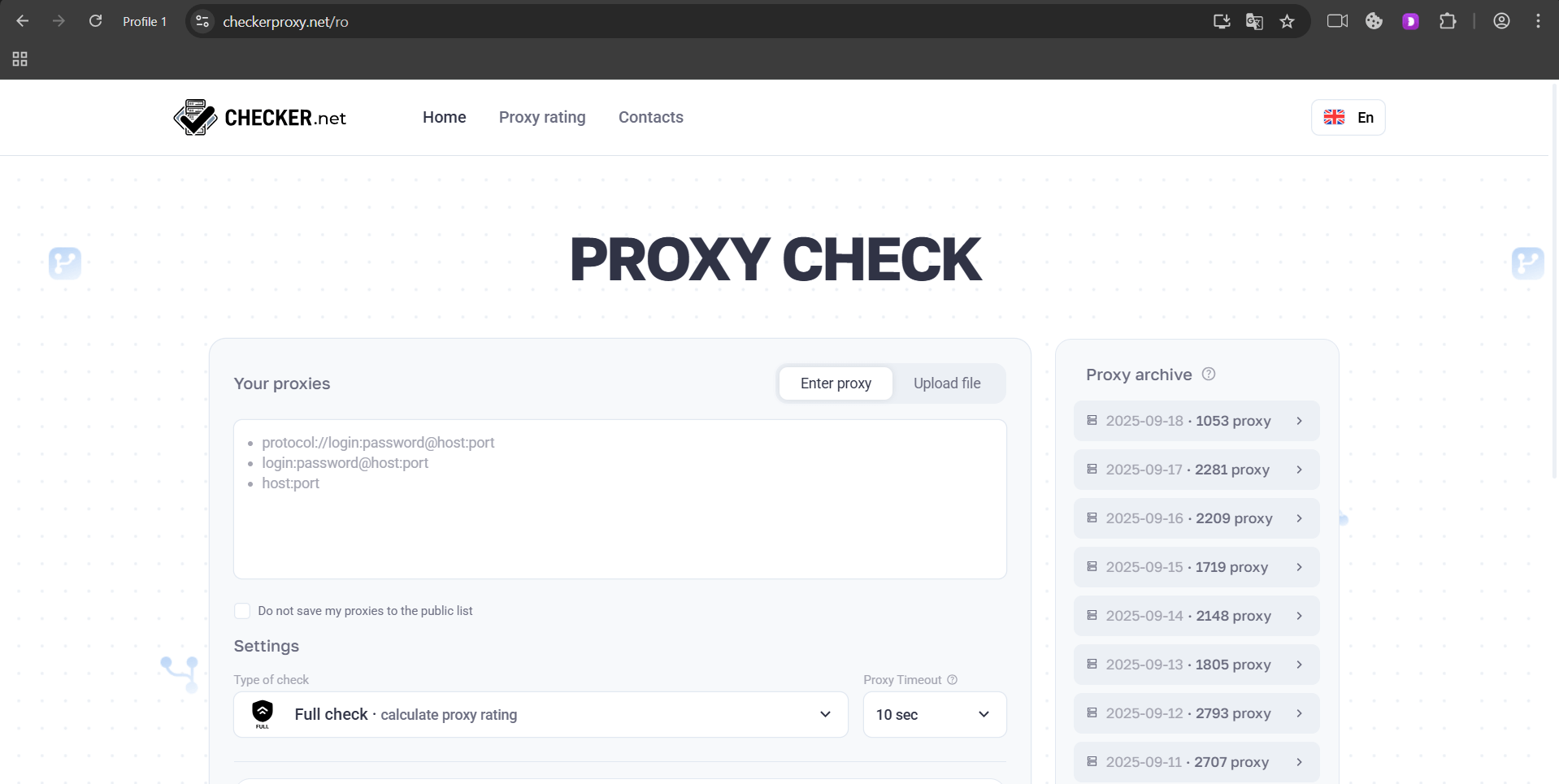
Main feature — shows percentage of successful connections. If you see less than 80%, better find another proxy. It can also check proxy operation with specific sites, which is very useful for targeted tasks.
Using checkers and specialized programs
When you need to check not a couple of proxies but hundreds or thousands, online services won't cut it. You need desktop programs.
Proxy Checker by FOGLDN — free Windows program that's saved many people more than once.
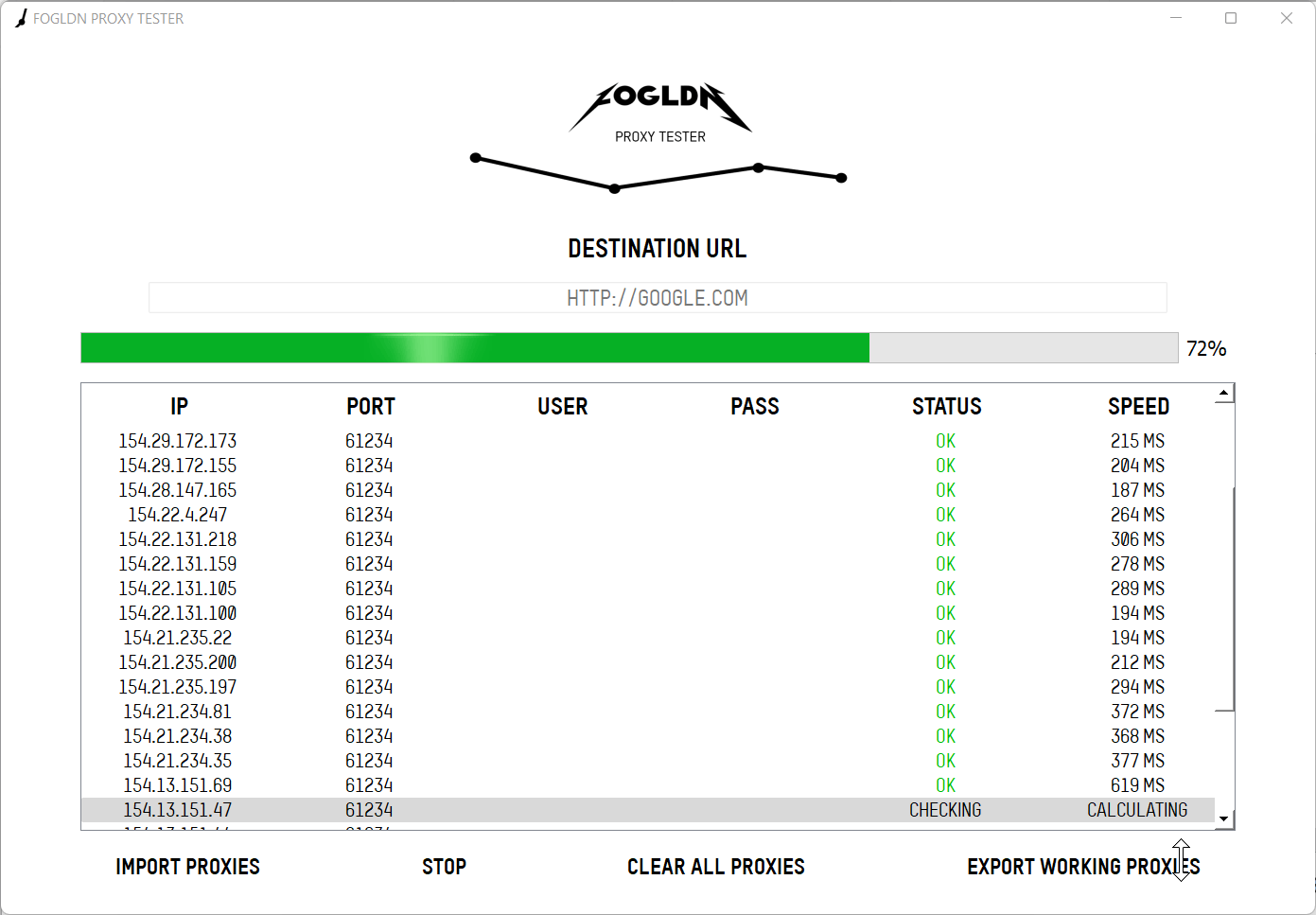
Load a proxy list from txt file, program runs through them all, shows speed, country, type. At the end you can export only working proxies. Only downside — interface from the 2000s, but works like clockwork.
Proxifier — this is pro level.
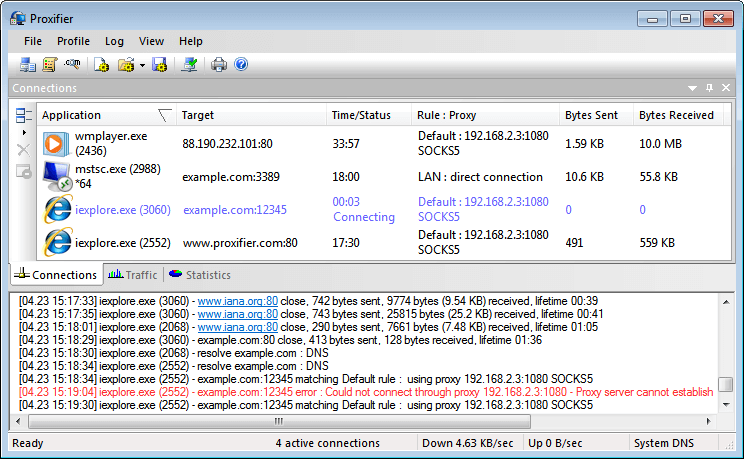
Program doesn't just check proxies, it shows detailed statistics: how much data passed through, which programs use proxy, where errors occurred. Costs money, but has 30-day trial. If you work with proxies constantly — must have.
ProxyChains for Linux lovers — console utility that can work with proxy chains.
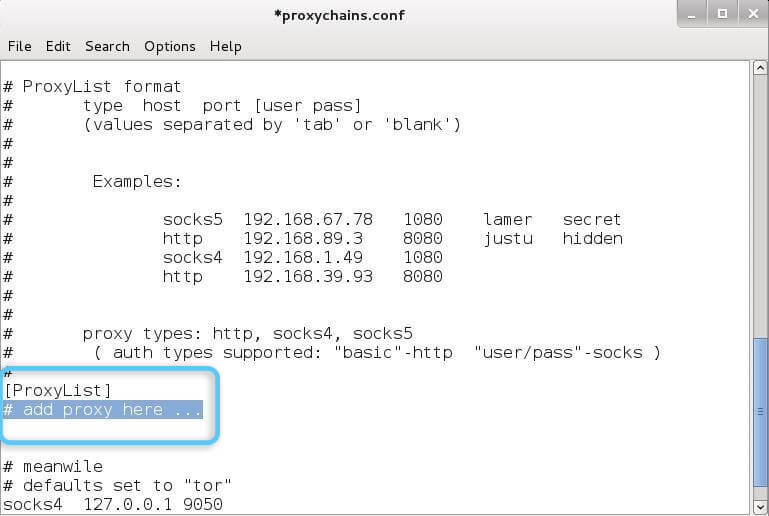
You can set up a route through several servers in sequence. Setup isn't the simplest, but possibilities are huge.
Checking connection through curl and console utilities
For those comfortable with command line, there are more flexible checking methods.
Basic curl check:
curl --proxy http://proxy:port https://ipinfo.io
If proxy is working, you'll see JSON with IP info. If command hangs over 10 seconds, proxy is dead.
Want to check a specific site? Add -I flag to check headers only:
curl -I --proxy http://proxy:port https://example.com
Working with SOCKS5? Command is slightly different:
curl --socks5 proxy:port https://ipinfo.io
Life hack: add -w "\nTime: %{time_total}s\n" to any curl command to see response time. If over 5 seconds, proxy is too slow for normal work.
Where to look at logs and connection errors
When something goes wrong, logs become your best friend.
Windows hides logs in Event Viewer. Open "Event Viewer", go to "Applications and Services Logs" → Microsoft → Windows → WebAuth. There'll be all proxy authorization attempts.
macOS stores logs in Console (Console.app). Open the app, type "proxy" in search. You'll see all events related to proxy connections. Especially useful to check system.log.
Linux traditionally dumps everything in /var/log/. Check syslog or messages files. Command tail -f /var/log/syslog | grep proxy will show logs in real time.
In browsers, open developer console with F12, go to Network tab. Set filter to Failed. You'll see all failed requests. If there are many, problem is definitely the proxy.
Speed and ping
Speed determines the difference between normal work and constant freezes.
Speedtest-cli — console version of the famous service. Installs via pip in a second:
pip install speedtest-cli
speedtest-cli --secure
Run with proxy and without, compare results. Speed loss over 50%? Find another proxy.
Fast.com by Netflix is interesting because it specifically checks video download speed.
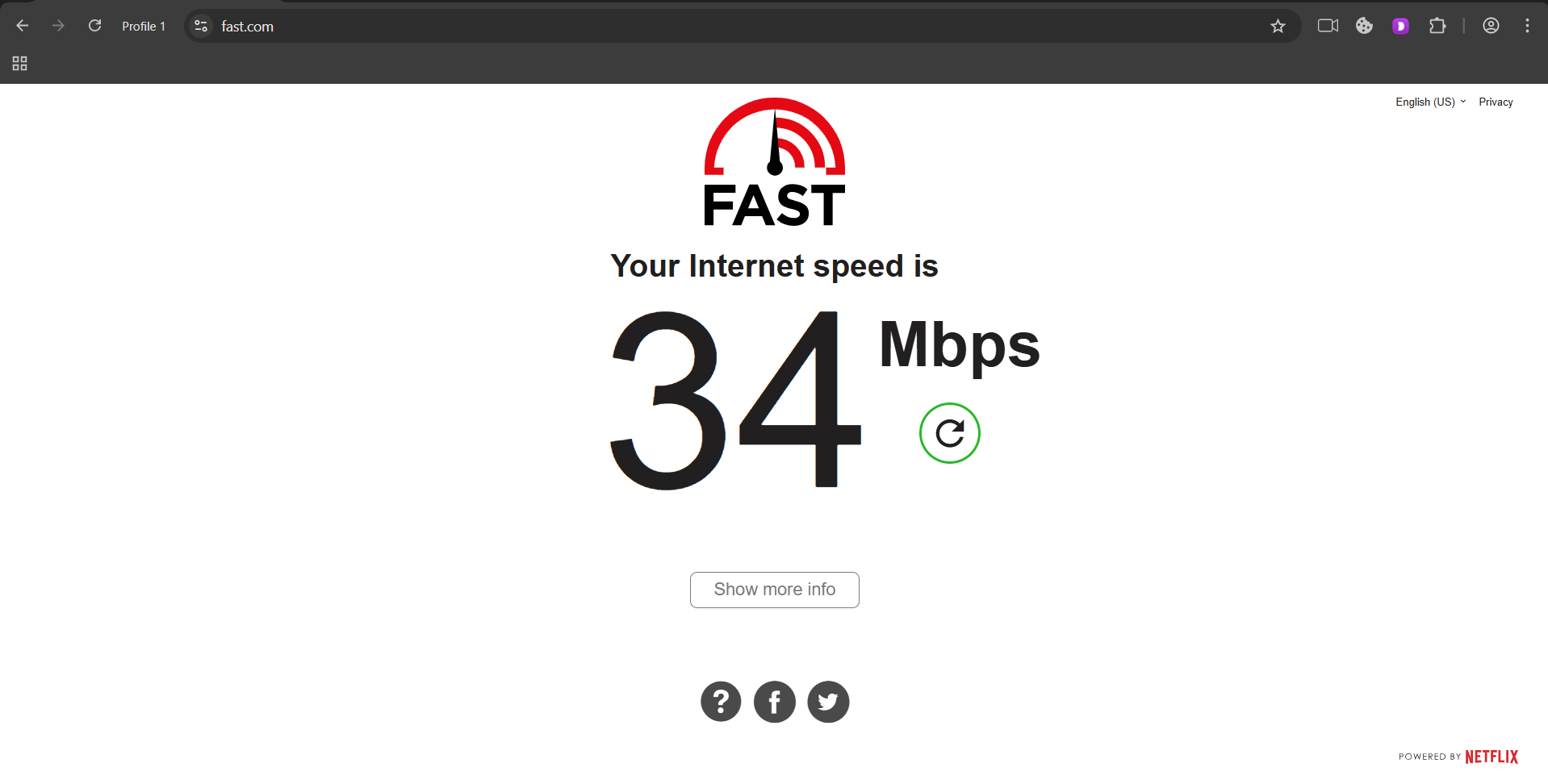
If you plan to watch streams or download large files through proxy, definitely check there.
Checking ping the old-fashioned way:
ping -t proxy-server.com
For comfortable work you need less than 100ms. For games requires less than 50ms. Over 200ms means noticeable delays.
Validity (valid/invalid)
Checking proxy validity is like checking pulse. Proxy can be alive in the morning and dead by lunch.
Valid proxy should:
- Respond to requests within 5 seconds
- Transfer data without distortion (check by downloading a small file)
- Hold connection for at least a minute without drops
Invalid proxies usually either don't respond at all or return error 407 (Proxy Authentication Required).
IP "cleanliness" and blacklists
Here's where real cleanliness checking begins. IP might work, but if it's blacklisted, it's useless.
Spamhaus.org is considered the main authority in the blacklist world. Their database is used by almost all email services. Go to the site, enter IP, get verdict. If IP is listed, forget about email campaigns through this proxy.
StopForumSpam.com contains database of IP addresses caught spamming on forums. Critically important for SMM and any community work. Database has over 100 million records.
IPQualityScore.com offers comprehensive fraud checking. Service gives score from 0 to 100. Under 75 is safe to work. Over 85 means high risk. Over 95 means IP is definitely burned.
Checking for fraud and suspicious activities
Anti-fraud systems get smarter every day. They track geographic anomalies (if IP jumps between continents in an hour, that's suspicious), request frequency (normal user doesn't make 1000 requests per minute) and IP history (was address used in botnets, for brute force, in fraud schemes).
Mass checking of proxy lists
If you work in SMM, SEO or arbitrage, you've probably faced this situation. Bought 1000 proxies, only 300 work. Manual checking will take all day.
ProxyChecker Pro handles mass checks brilliantly. Load file with 10000 proxies, go get coffee, come back to finished report with working addresses.
Unfx Proxy Checker offers free alternative with multi-threaded checking. Can check 500 proxies simultaneously. Though sometimes crashes on large lists.
Proxy Multiply is interesting for its built-in filters. You can immediately sort proxies by country, speed, type. Saves tons of time on post-processing.
When you can get by with manual test
If you need one or two proxies for personal tasks, don't bother with programs. Open whoer.net, check IP change, visit needed site. Works? Great, use it.
Manual checking is justified for specific sites. Just visit it through proxy. Doesn't block? Everything's fine.
Automating checks through scripts (Python, Bash, Golang)
For automation lovers, couple of ready scripts.
Python for beginners:
import requests
proxy = {'http': 'http://proxy:port'}
try:
response = requests.get('http://ipinfo.io/ip', proxies=proxy, timeout=5)
print(f"Proxy works! IP: {response.text}")
except:
print("Proxy is dead")
Bash for Linux folks:
while read proxy; do
timeout 5 curl -x $proxy https://ipinfo.io &>/dev/null && \
echo "$proxy works" || echo "$proxy doesn't work"
done < proxy_list.txt
By the way, if you choose a decent provider like GonzoProxy with their 20+ million verified IPs, you can forget about constant checks. Proxies are filtered on their side, you get already working addresses. Significant time saver.
Print this list and hang it above your monitor.
✓ Make sure proxy is actually enabled in system or browser
✓ Check speed and ping (slow proxy is worse than none)
✓ Run IP through fraud and blacklist checking services
✓ Use online checker to verify anonymity and leaks
✓ Check if geolocation matches your tasks
FAQ


Checking proxy servers isn't paranoia, it's necessity. Spend 5 minutes testing before starting a project so you don't tear your hair out later over banned accounts. Even better, choose providers with pre-filtered traffic. Want to try quality residential proxies? Use promo code START15 at GonzoProxy to get 15% off your first purchase.